
Text & Fonts
Set up editable text, font choices, colors, sizing and customer transform permissions.
Text is what customers personalize most. You decide which fonts they get, which colors, and which formatting tools.
Fonts
Core Setup › Fonts lists the fonts this configuration exposes. Click Add fonts and either:
- Add existing fonts — select one or several fonts already in your shared library (Manage Fonts), or
- Create and add a new font — search Google Fonts and pick a variant, or Upload font a file of your own. The new font is also saved to the library.
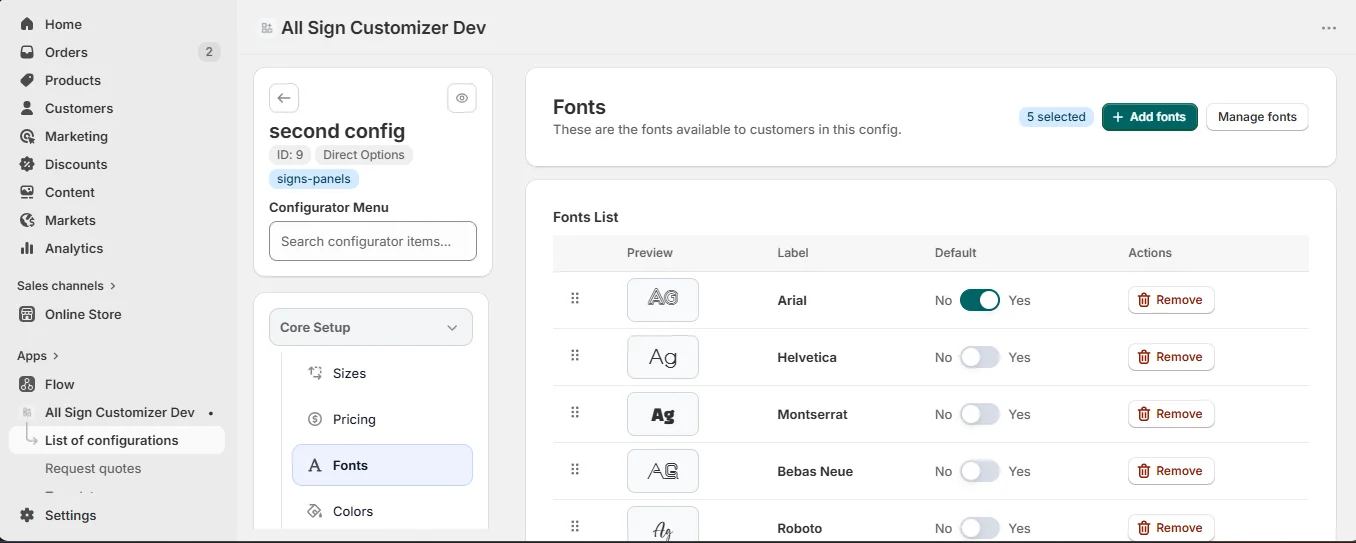
Set a Default font, and keep the list short: eight well-chosen fonts sell better than eighty.
Only offer fonts you hold a license for and that your machines cut or engrave cleanly at your smallest letter height.
Text Setting
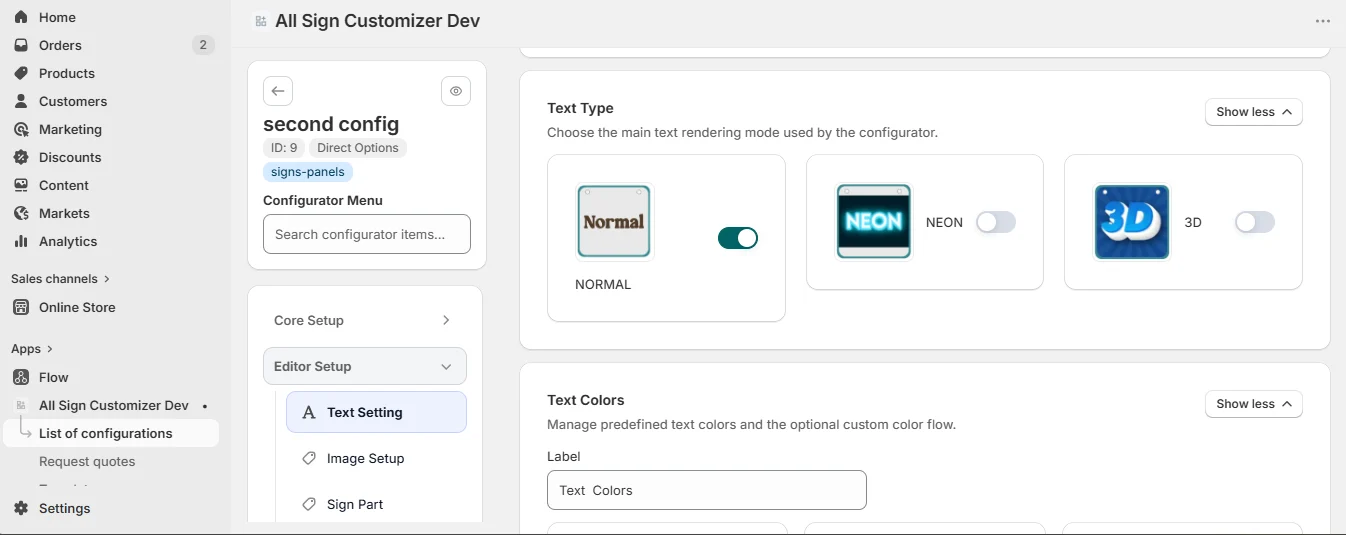
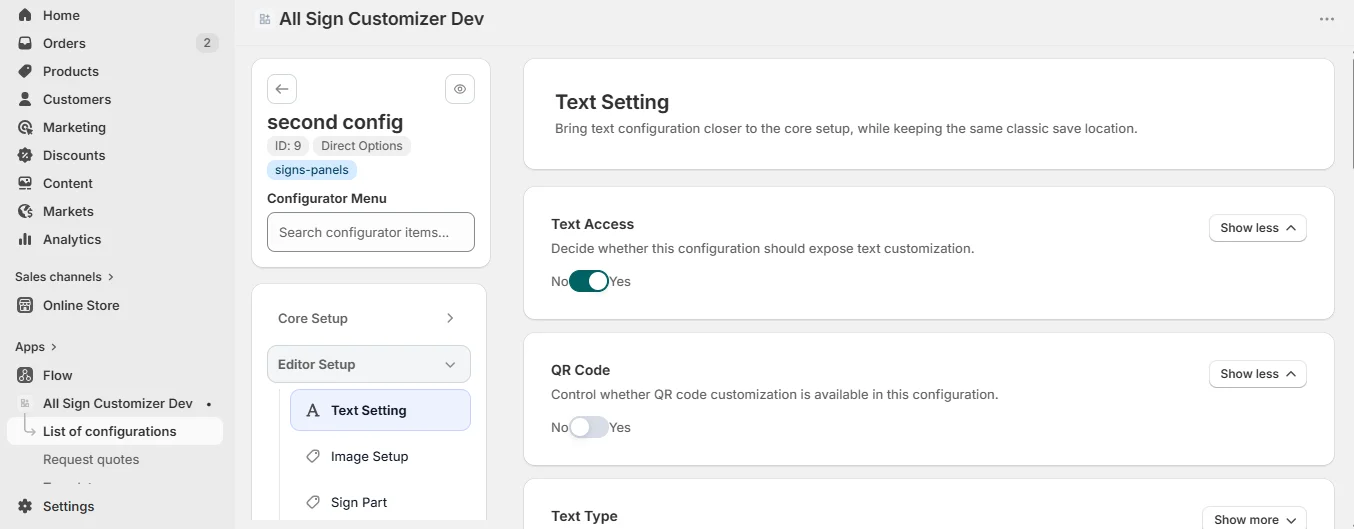
Editor Setup › Text Setting controls the text tools of the editor.
| Block | What it does |
|---|---|
| Text Access | Turn text customization on or off for this configuration. |
| QR Code | Let customers add a QR code (a link, a Wi-Fi code, a menu…). |
| Text Type | Normal text, or Neon rendering with a glow effect. |
| Text Colors | The predefined text colors (name + color), and Enable Custom color to add a color picker. |
| Font Size | Let customers change the size, between a minimum and a maximum, from a default size. |
| Text Options | The formatting tools: bold, italic, underline, overline, strike through, opacity, text border, alignment. |
One font or several per sign
In Settings › General › Mode, choose Simple or Multi. In Multi mode you can allow customers to apply different fonts (Allow Multi Fonts) or different colors (Allow Multi Colors) to different parts of their text — a name in script, a phone number in bold sans.
Text limits
The number of lines and characters a customer can type depends on the selected size (see Sizes & Shapes). In Build from Presets, each text zone of a design has its own required flag and character limits.
Checklist
- A default font and a default text color are set.
- Text colors stay readable on every material color.
- The minimum font size is one you can produce.
- Only the formatting tools you can manufacture are enabled.
Get product news by email
New features, release notes and setup tips — a few emails a year.