
Request a Quote
Let customers submit customized designs as quote requests instead of—or alongside—purchasing.
Some signs need a human look before a price: very large formats, unusual materials, installation on site. Request a Quote lets customers send their design and a message instead of — or in addition to — buying it right away.
1. Turn it on
Open the configuration, then Settings › General › Request Quote.
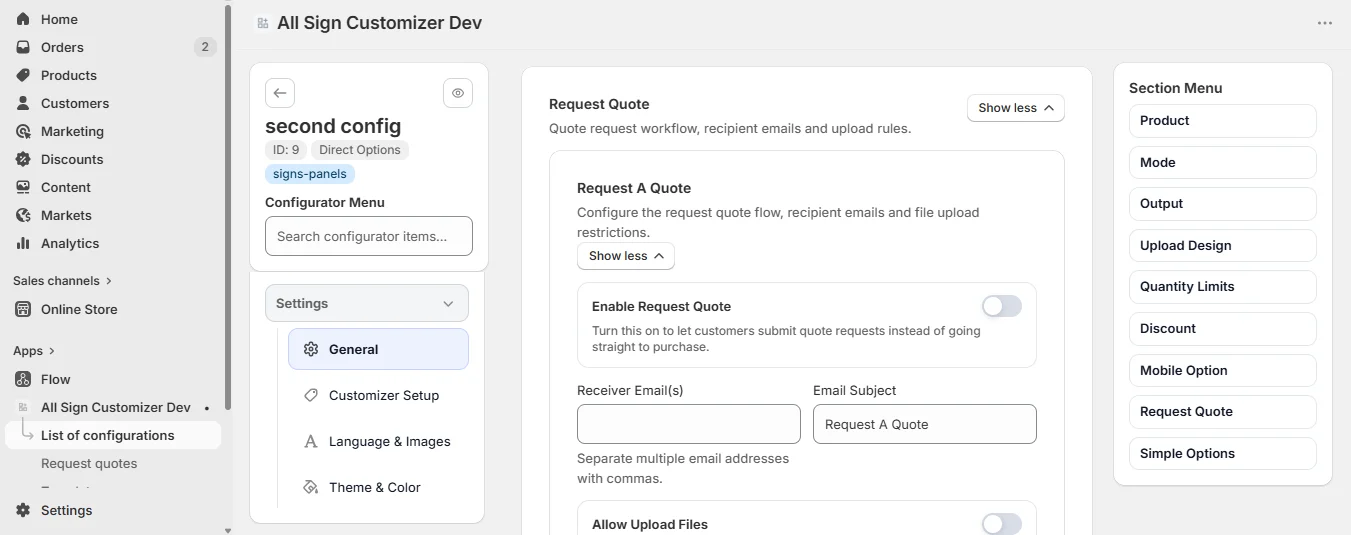
| Setting | What it does |
|---|---|
| Enable Request Quote | Shows the Request a quote button in the configurator. |
| Receiver Email(s) | Who receives each request — separate several addresses with commas. |
| Email Subject | The subject of the notification (“Request A Quote” by default). |
| Allow Upload Files | Customers may attach files: plans, photos of the wall, a vector logo. |
| Accepted Extensions, Max File Size, Max Files Number | The limits of those attachments. |
| Send To Customer | Send the customer a copy of their request. |
2. Quote-only products (optional)
To accept quotes only, open Settings › General › Product and turn off Enable add to cart. To keep the price private as well, turn on Hide sign pricing on design screen.
3. What customers do
They customize the sign as usual, click Request a quote, write their message, attach files if allowed and send. The request contains the full recap of the design.
4. Read and answer requests
From the app home, open Request quotes. The list shows the date, customer, product, number of files and status of each request.
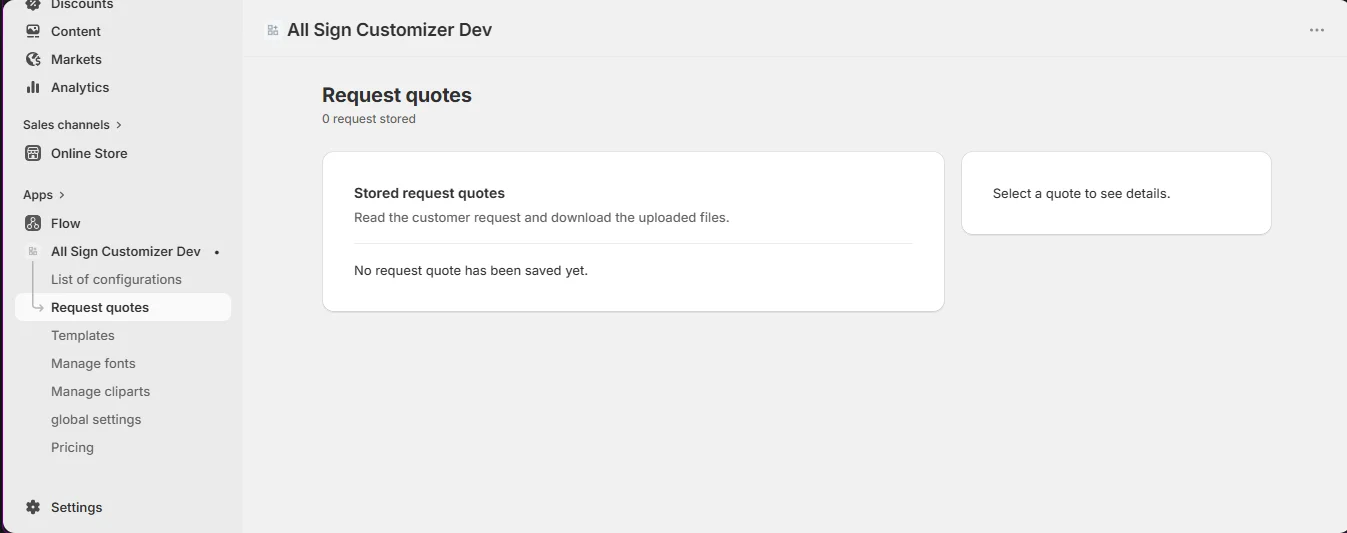
Click View to open the details: the customer’s message, the preview of the design, the technical data (size, material, options, texts) and the uploaded files, each with a Download button. Reply from your usual mailbox, or create a draft order in Shopify with the agreed price.
Quote requests are hot leads. Turn on Send To Customer so they know the request arrived, and reply within the day.
Get product news by email
New features, release notes and setup tips — a few emails a year.