
Templates
Prepare ready-made sign designs customers can buy as is or open in the configurator, and show them in a gallery on your store.
A template is a finished sign design you prepare in advance — a “Private parking” sign, a “Wet floor” warning, a café menu board. Customers can buy it as is or open it in the configurator and adapt it. Templates are built on Build by Options configurations.
Templates are ready-made designs shown in a gallery on your store. In a Build from Presets configuration, the designs play this role inside the configurator, so that model has no Templates menu.
1. Create a template
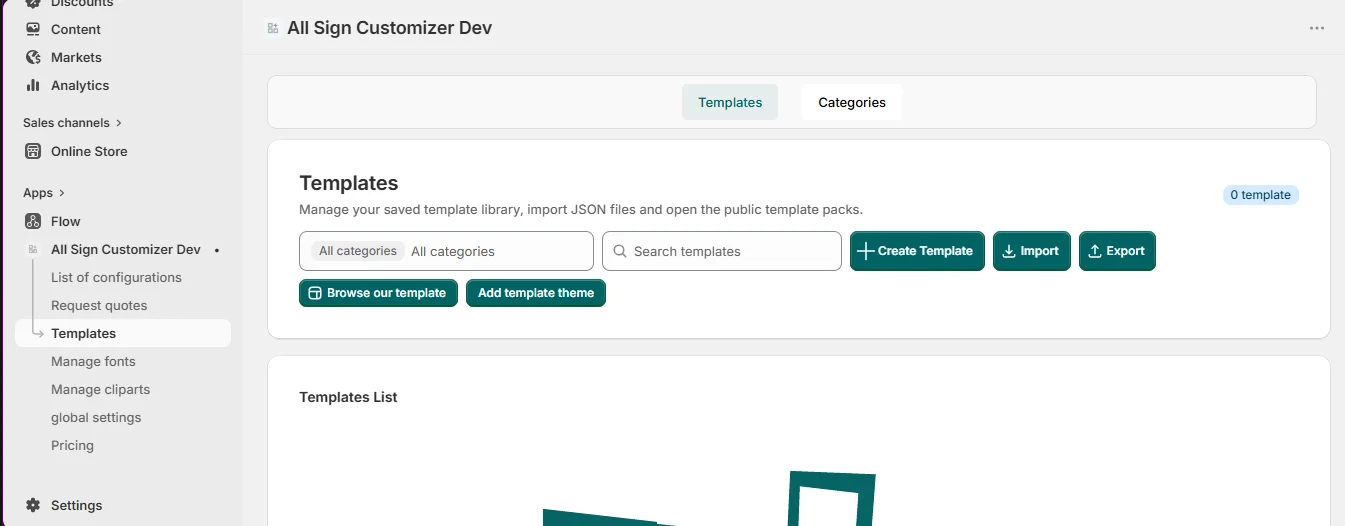
Open a Build by Options configuration, then Templates › Add new template (or Templates › Create Template from the app menu and pick the configuration).
- Name and category — categories are the filters of the gallery (“Safety”, “Parking”, “Restaurant”).
- Preview image — or turn on auto-update for the preview image so it follows the design.
- Real image — an optional photo of the produced sign.
- Base price and Enable add to cart — let customers buy the template without opening the configurator.
2. Design it
Click Design on the template: the configurator opens in template maker mode. Choose the size, material and options, place the texts and images, then save. Customers will start from exactly this state.
3. Show the gallery on your store
In the Shopify theme editor, add the Templates gallery block (button Add template theme in the Templates screen does it for you) and set:
- the Id of template’s configuration — the number in the address bar of the configuration in the app;
- the Design Screen page url — the page or product where the configurator opens when a customer clicks Customize;
- the texts and colors of the Add to cart and Customize buttons, and whether the gallery opens in a modal.
On the product page, the configurator block can also show a Design from example button that leads to this gallery. See Manage Configuration Display on Your Storefront.
Templates only?
To sell only your templates, turn off Enable design from scratch in Settings › General › Product: customers can personalize a template but cannot start from a blank sign.
Organize, import and export
- Templates › Categories — create and rename the categories used across your templates.
- Export — download the templates of a configuration as a JSON file.
- Import — load a templates JSON file into a configuration and a category, for example to copy templates to another store.
A library of ready-made template packs, added in one click, is on the way. Meanwhile, create your own from any Build by Options configuration.
Get product news by email
New features, release notes and setup tips — a few emails a year.