Create a Preset-Based Configuration
Build from Presets: create design collections and ready-made designs, then choose exactly what customers can personalize — text zones, logos, sizes, colors and fixings.
Customers start from a ready-made design
Instead of assembling a sign option by option, your customers pick a design you prepared — a house number plaque, an office nameplate, a direction sign — and only change what you allow: the text, a logo, a color, a size.
Presets or options?
Every Signs & Panels configuration uses one of two setup models, chosen when you create it.
| Build by Options | Build from Presets | |
|---|---|---|
| Customer starts from | A blank sign and a list of choices: size, shape, material, color, extras. | A gallery of designs, grouped in tabs (collections). |
| Best for | Flexible catalogs where each order is built choice by choice. | Guided products with prepared layouts: plaques, door tags, address signs, wayfinding. |
| What you control | The options of the whole product. | Per design: sizes, shapes, colors, fixings, borders, lighting, text zones and image zones. |
| Templates | Yes — templates are saved from this model. | No — the designs play that role. |
What your customers see with each model:
Build from Presets is available for Signs & Panels. Banners and Stickers use Build by Options; Neon and Channel letters have their own guides.
1. Start a new configuration
In the app, open Configurations and click Add new configuration. The wizard has four steps: Product family, Material, Setup model and Product info.
2. Choose Signs & Panels and its materials
Select Signs & Panels, then the material(s) you produce: acrylic, aluminium, brass, wood, plastic, stainless steel, vinyl… You can add or rename materials later in Core Setup › Materials.
3. Pick Build from Presets
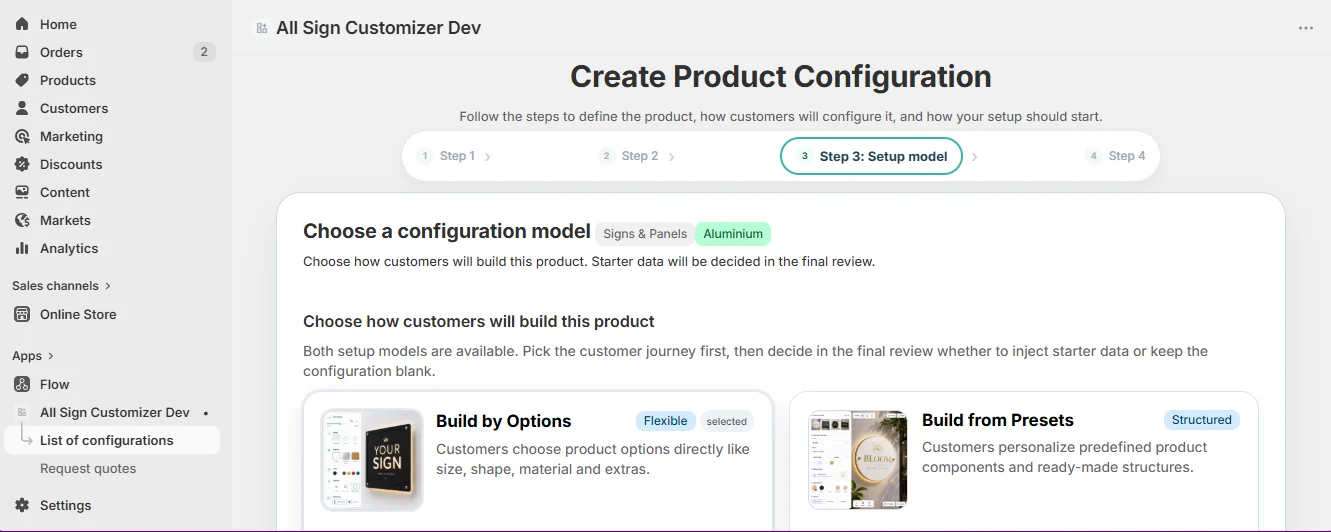
On the Setup model step, choose Build from Presets — “customers personalize predefined product components and ready-made structures”. This choice decides the menus of the configuration: you will work with Designs instead of one list of options.
4. Name it, connect the product, include the starter template
On Product info, give the configuration an internal name (customers do not see it), an optional description, and select the Shopify product(s) that open this configurator.
Under Starter template, click Include starter template and choose the language of the demo texts. The configuration is created with a complete preset catalogue you can test right away, then adapt:
Modern Address, Arched House Sign, Round Address Plaque.
Office Nameplate, Room Number, Door Tag.
Reception Arrow, Shield Direction, Creative Direction.
Each starter design has its own silhouette, a matching fixing layer, three sizes and editable text lines. Choose Start blank only if your catalogue is ready. Review the summary and click Create configuration.
5. Find your way in the configuration
The Core Setup menu of a preset configuration holds the libraries your designs pick from:
- Designs — the collections and the designs inside them. Most of the work happens here.
- Sizes, Shapes, Colors, Borders, Fixing Methods, Fonts — the pool of choices. A design only offers the ones you link to it.
- Materials and Pricing — what the sign is made of and how it is priced (see Pricing Overview).
To correct a size used by several designs, edit it once in Sizes: every design that offers it follows.
6. Create a design collection
A collection is a tab in the configurator (“House & Address”, “Office & Door”…). Open Designs and click Add new collection, or Edit one. A collection has three fields:
- Label — the name of the tab.
- Description — short helper text under the tab.
- Preview image — optional, 512 × 512 px recommended.
Save the collection, then add its designs. In the list, drag the rows to reorder the tabs and switch on the Default Collection.
Below the list, Design Settings apply to the whole Designs step of the configurator — click Save settings after a change:
- Label (Tab label) and Description — the name and helper text of that step (“Components” and “Choose your design” in the starter template).
- Design behaviour — Show customization options directly opens the editor on the default design; Choose a design before customization makes customers pick a design first.
- Show Design tab when only one design — keep or hide the step when a collection holds a single design.
7. Add a design
Inside the collection, click Add design. Start with Design details: the other modules unlock once the design is saved, and it cannot be saved without its preview image. Each module then saves on its own.
| Module | What you set |
|---|---|
| Design details | Design name shown in the Designs tab, short description, preview image (required, 512 × 512 px) and an optional additional price added when this design is chosen. |
| Size | The sizes this design offers and the default one — existing sizes or a new one. |
| Shape | Shapes from the configuration, from your managed shapes, or one custom SVG shape for this design only. |
| Color | The color combinations (material background + text color) and, with Unlimited colors, a color picker for the customer’s own combination. |
| Fixing | Managed fixing methods, or a custom SVG fixing layer drawn for this silhouette. |
| Text | The text zones customers fill in (step 8). |
| Image | Zones where customers upload a logo or photo (step 9). |
| Lighting | Optional lighting colors for illuminated panels. |
| Border | The borders this design accepts. |
Back in the collection, switch on Default for the design the configurator opens on, and click Update collection.
8. Define the text zones
A text zone is one field the customer fills in: “Main text”, “Subtitle”, “Footer”… For each one, set the Field label, the Default value shown before the customer types, and the rules: Required, Min characters, Max characters.
Main text “ALEX MORGAN” (required, 40 characters max) and Subtitle “CREATIVE DIRECTOR”. The customer types their own name and title; the layout stays yours.
9. Add image zones for logos
An image zone receives the customer’s artwork in a fixed area of the design. Set its Field label, an optional Default image, the Allowed files (PNG, JPG/JPEG, SVG, WebP), the Max file size and the Fit mode:
- Contain — the whole image stays visible inside the zone.
- Cover — the zone is filled; edges may be cropped.
- Stretch — the image is distorted to fill the zone.
Lock aspect ratio, Min width and Min height refuse images too small to print well.
10. Place everything with Configure design
Click Configure design (“Open mini configurator”) at the top of a design, or Configure on its row in the collection. The real configurator opens on this design: move and resize the text and image zones, pick the fonts, check each size and color. What you save here is what customers get.
11. Preview and test
Click Preview in the configuration header (add to cart is disabled there), then open the connected product on your storefront and check:
- Each collection tab shows its designs, in the right order.
- Switching designs keeps a price consistent with the size and material.
- Required text zones must be filled before ordering.
- An uploaded logo lands in its image zone with the chosen fit mode.
- The cart line lists the design, size, color and texts.
Open the design and select at least one item in its Size and Color modules. A design only offers what is linked to it, even when the configuration library holds more.
Go further
Get product news by email
New features, release notes and setup tips — a few emails a year.