
Fonts & Cliparts
Manage reusable fonts and clipart assets used across ASO configurations.
Fonts and cliparts are shared libraries: add them once, then choose in each configuration which ones customers get. Open them from the app home, Library.
Manage Fonts
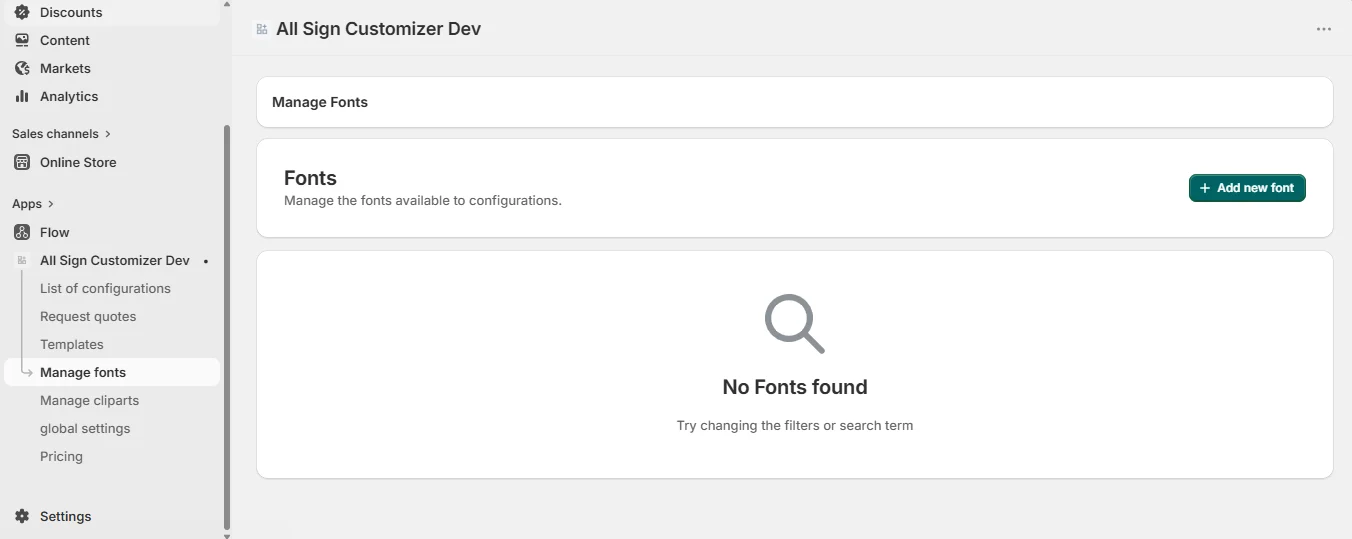
Click Add new font and choose the Font Source:
- Google Fonts — search the font, pick the Font Variant (regular, bold, italic…). The URL is filled in automatically.
- Upload Font File — your own font file, for a brand typeface or a stencil font matched to your machines.
Give it a clear Label: it is the name customers see. Fonts added here appear in every configuration under Core Setup › Fonts › Add existing fonts.
Only upload fonts your license allows for commercial production. Google Fonts are free for commercial use.
Manage Cliparts
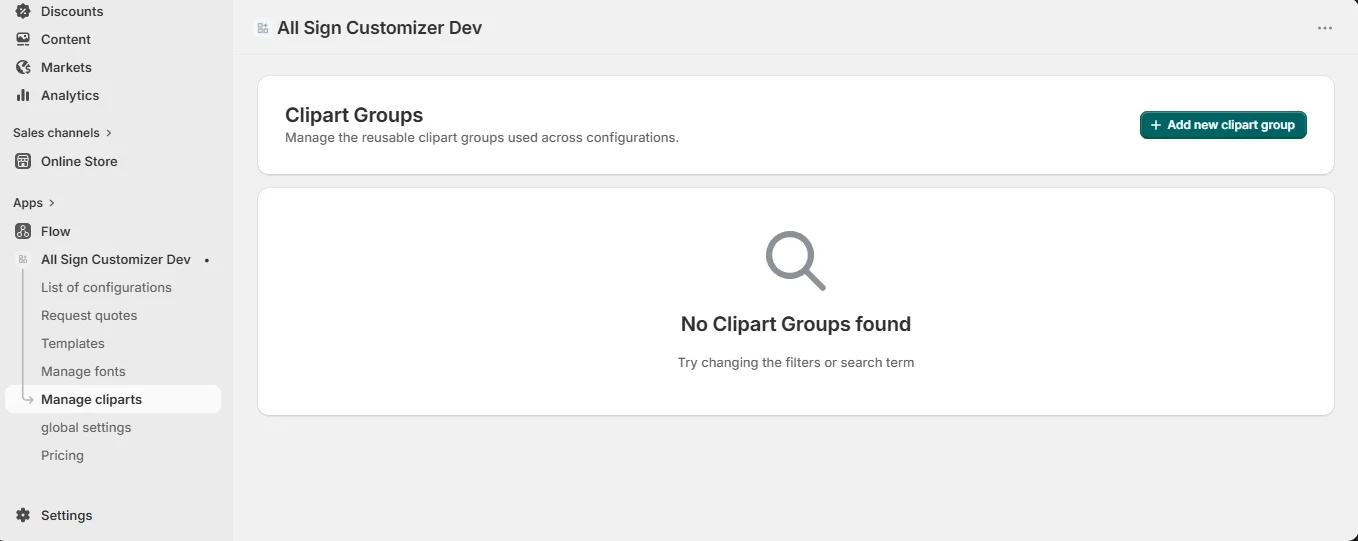
Cliparts are organized in groups (“Safety symbols”, “Arrows”, “Pets”). Click Add new clipart group, give it a title and description, then Manage it to add cliparts:
- Upload your own images (SVG recommended for engraving and cutting), or
- API — pick from built-in categories: arrows, symbols & markings, prohibitions & warnings, animals, vehicles & traffic, sports, plants, food & drinks… Select all or a few, then Add selected cliparts.
Each clipart has a Label and an optional Additional price.
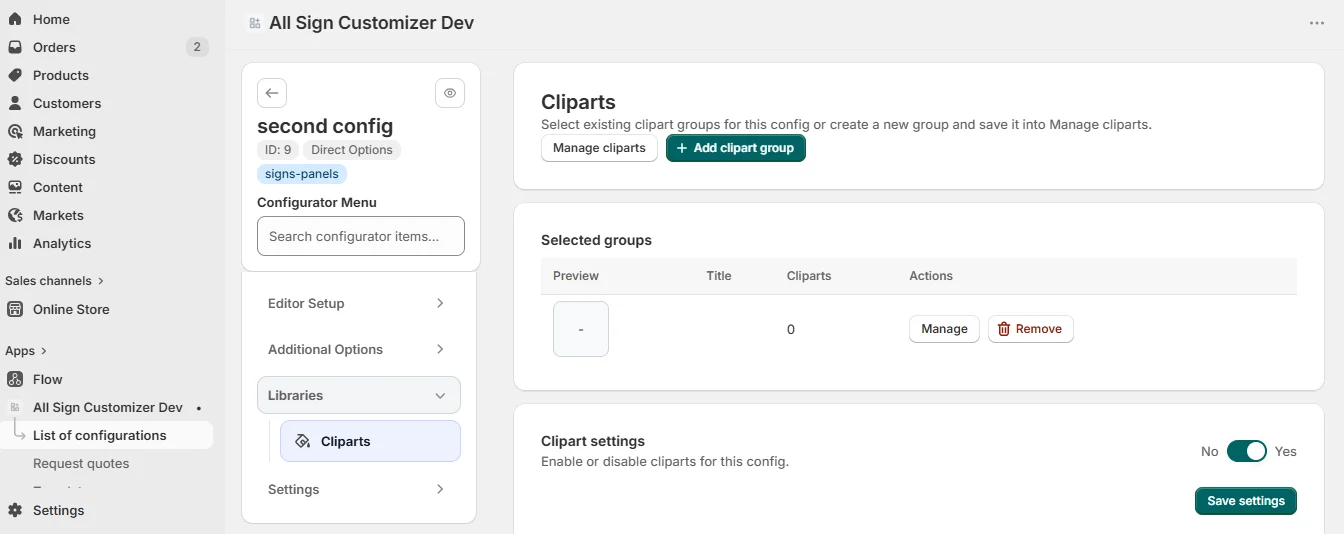
Then, in a configuration, open Libraries › Cliparts, add the groups customers should see and make sure cliparts are enabled in Clipart settings.
Good practices
- A few focused groups beat one huge list: customers browse by theme.
- Use single-color SVG cliparts for engraving and vinyl; they can follow the sign’s text color.
- After changing a shared font, open two or three live products to check them.
Get product news by email
New features, release notes and setup tips — a few emails a year.