Output Settings
Choose the production files you receive with each order: formats, PDF resolution, watermark, zips and notification emails.
Output settings decide what files you receive with each order and how they are named. Some are global, others are set per configuration.
Per configuration — Settings › General › Output
| Setting | Choices |
|---|---|
| Output files format | PNG, JPEG, SVG, PNG + SVG, JPEG + SVG or PNG + JPEG. A PDF is always generated as well. |
| PDF Quality (DPI) | 72 (screen), 150 (basic print), 300 (quality print, recommended) or 600 (high-quality print). Higher DPI means larger files. |
| Watermark | An image stamped on the generated previews. |
| Zip output files and Zip output folder prefix | Pack the files of an order line in a zip whose name starts with your prefix. |
| Design composition | Include the composition details of the design in the order output. |
Choose a format with SVG for engraving, cutting and vinyl: lines stay sharp at any size.
Customer uploads — Settings › General › Upload Design
Set the Allowed upload formats (for example jpg, png, svg, pdf), the Maximum upload size in MB and the Maximum upload number, and whether uploads are zipped with the order.
For the whole shop — Global Settings › Output
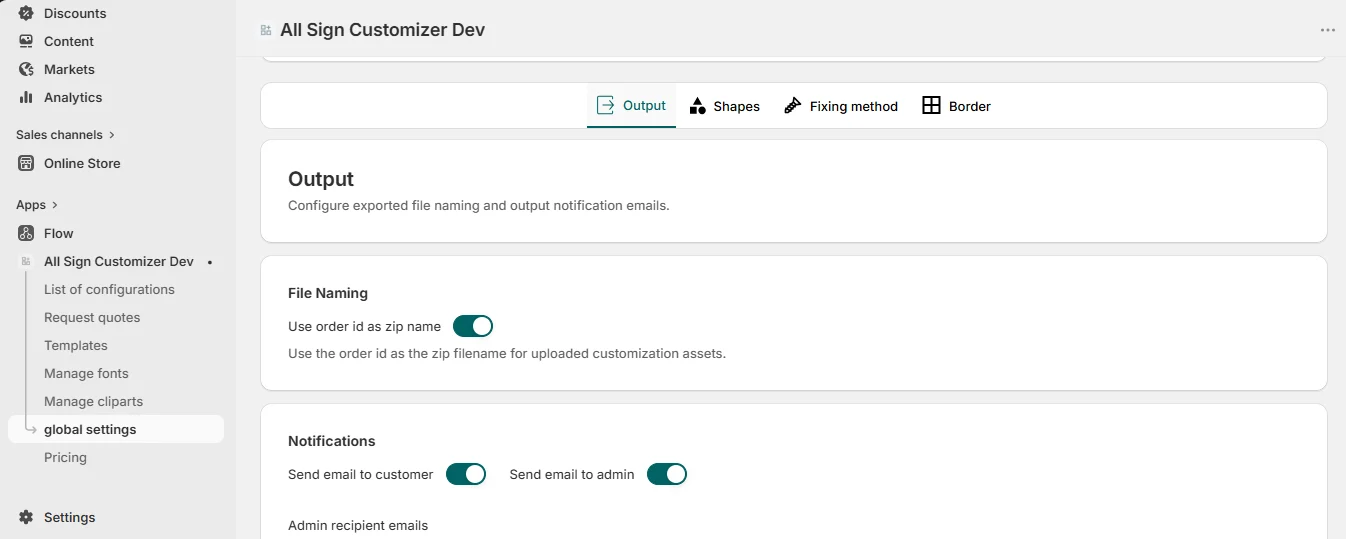
- Use order id as zip name — name the zips of uploaded assets after the order, to find them instantly.
- Send email to customer / Send email to admin — order notifications, with the Admin recipient emails (comma-separated).
Neon and Channel letters
Letter sign configurations have their own Output screen: SVG output, Send Design By Email, and a Manufacturer Email sent each time a custom sign is marked as paid, with your subject and template (text, font, size, colors, backboard, mounting, customer details…).
Get product news by email
New features, release notes and setup tips — a few emails a year.