
Customizer Setup
Control the customer-facing layout, steps, labels, theme and interaction settings.
The Settings group of a configuration shapes what customers see and how they move through the configurator: layout, steps, wording, colors and behavior on mobile.
Order and show the steps
Settings › Customizer Setup › Config Options lists the blocks of the configurator (size, material, shape, fixing, color, text, image…). Drag the rows to set their display order, hide the blocks you do not need, then save.
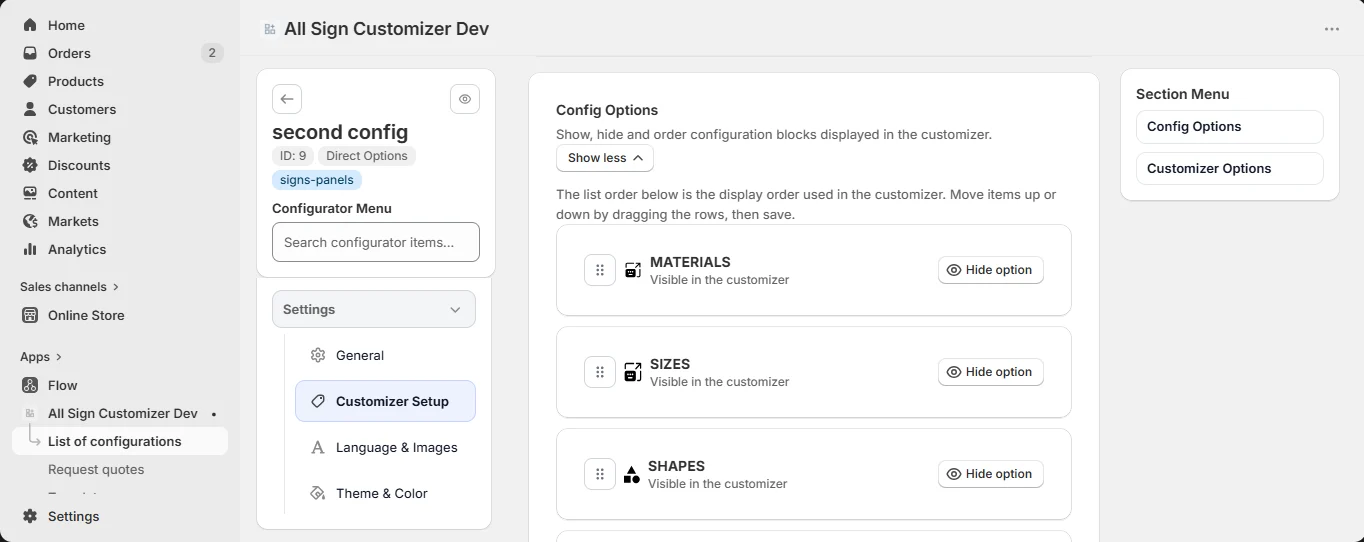
Size and material first, decoration last: customers see the price settle early and then personalize.
Customizer options
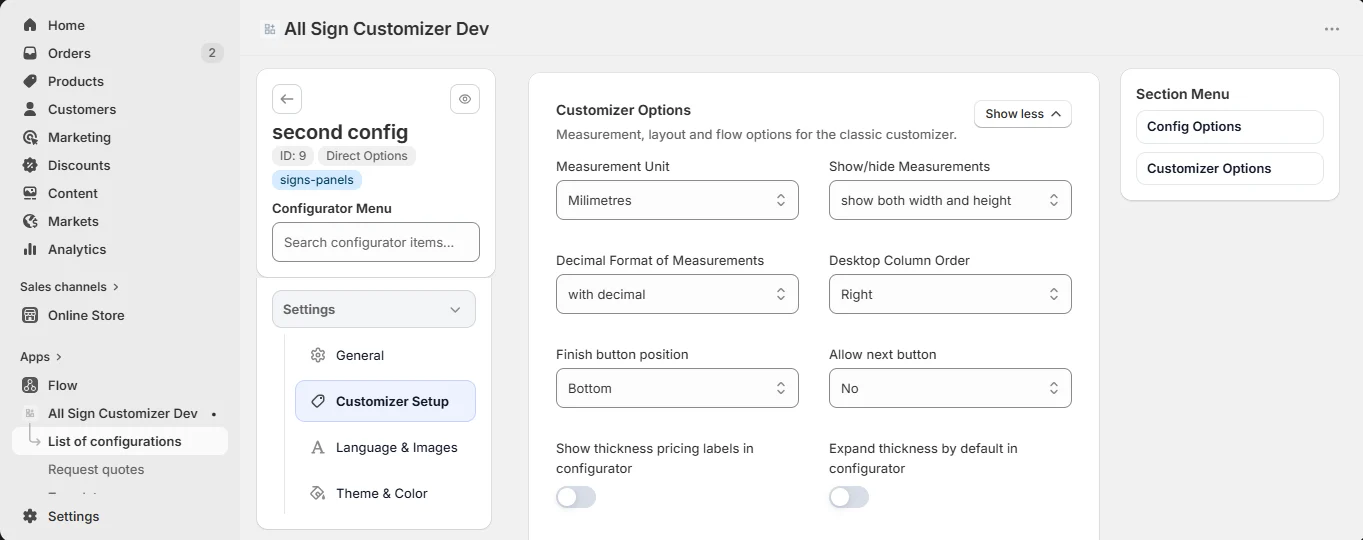
| Option | Effect |
|---|---|
| Measurement Unit | The base unit: millimeters, centimeters, meters, inches or feet. |
| Show/hide Measurements | Show width and height on the preview, only one of them, or none. |
| Decimal Format of Measurements | With or without decimals. |
| Minimum Order Price | Charged when the total is lower. 0 disables it. |
| Desktop Column Order | Options on the left or on the right of the preview. |
| Finish button position | Where the Finish button sits. |
| Allow next button | Guide customers step by step with a Next button. |
| Thickness labels / expanded lists | Show thickness prices, open the thickness and predefined size lists by default. |
General settings
Settings › General gathers the behavior of the product, one block each:
- Product — enable add to cart; allow design from scratch or only from templates; redirect to the cart or checkout after adding; hide the theme’s add-to-cart buttons; hide the price on the design screen; show a recap before adding to cart; upload the design file on finish.
- Mode — Simple or Multi (several fonts or colors in one text); allow customers to save and share their design (see Preview, Save & Share).
- Output and Upload Design — production files and customer uploads (see Output Settings).
- Quantity Limits and Discounts — see Pricing Recipes.
- Mobile Option — show a navigation menu of the steps on mobile, open it first, and display choices as a horizontal scroll or stacked.
- Request Quote — see Request a Quote.
- Simple Options — replace the configurator with plain option selectors (Size, Material…) and the theme’s own Add to cart. The choices are saved as line item properties.
Double-sided signs
Editor Setup › Sign Part turns on a second face: rename the two parts (“Front” / “Back”), let customers copy the design from one side to the other, and price the second face with an additional amount or a multiplier.
Appearance: skins, colors and CSS
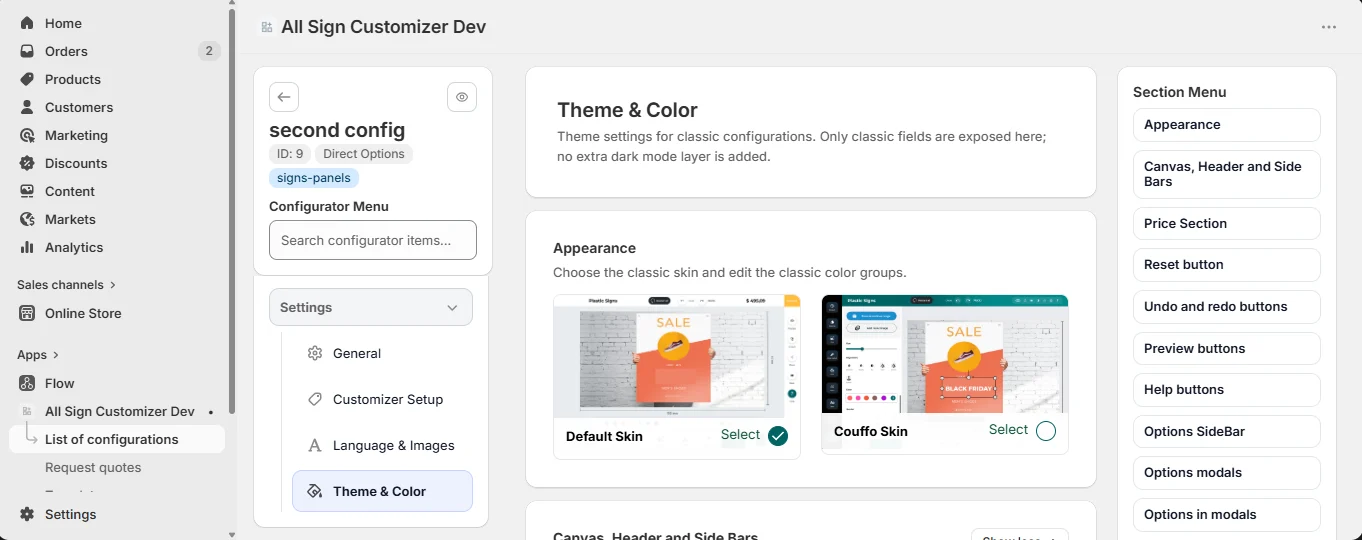
Settings › Theme & Color chooses the skin of the configurator (Default or Couffo) and lets you recolor every part of it: canvas, side bars, price section, buttons, modals, recap, Finish and Add to cart buttons.
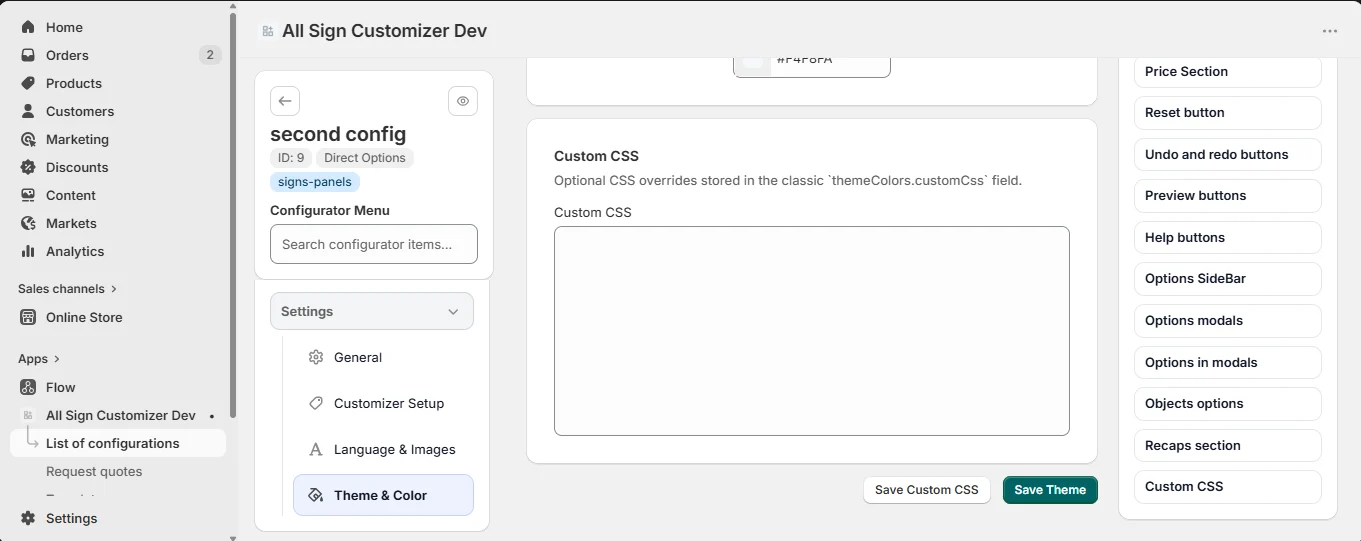
For the last details, Custom CSS accepts your own rules, loaded with the configurator.
Wording and icons
Settings › Language & Images holds every text of the interface — button labels, step titles, price prefix and suffix, error messages — and the icons of the menu. Translate them here if your store sells in another language. The Upload Design tab can also show a custom design link to a page of your store for complex requests.
Get product news by email
New features, release notes and setup tips — a few emails a year.