Images & Customer Artwork
Allow customers to upload artwork and control how images behave in the customizer.
Customers often bring their own logo or photo. Editor Setup › Image Setup decides what they may upload, how it is checked and how it is prepared for print.
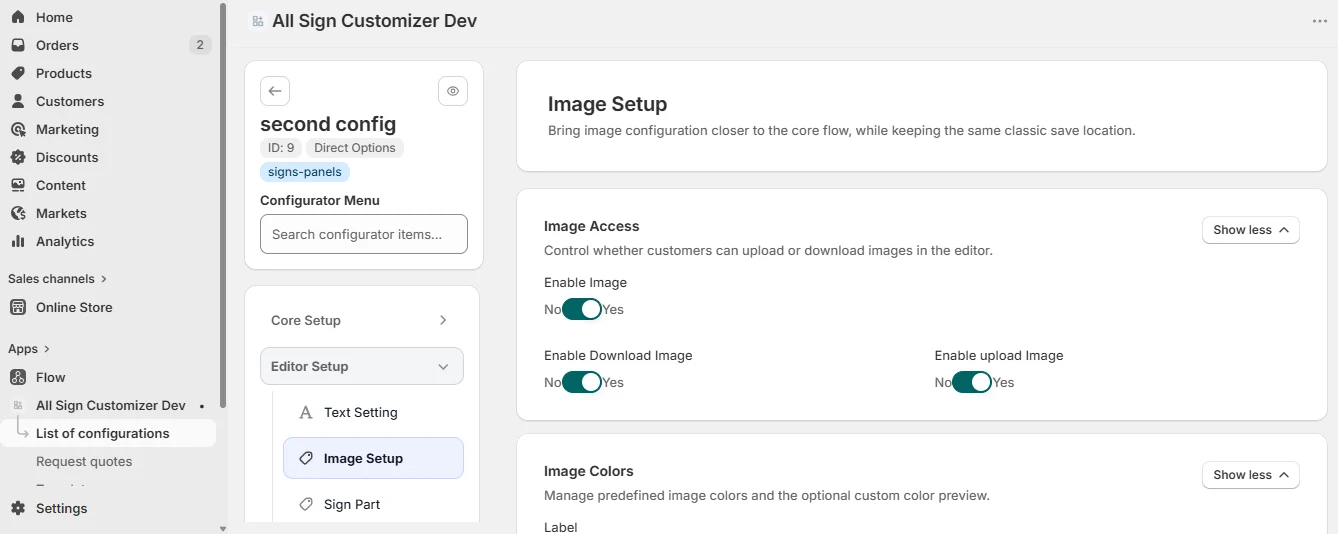
Image access
- Enable Image — show the image tools in the editor.
- Enable upload Image — customers can upload their files.
- Enable Download Image — customers can download the preview of their design.
Upload rules
- Upload Script — Normal, or Custom with graphical enhancements for a richer upload dialog.
- Allowed extensions — PNG, JPEG, SVG, WebP, GIF. Prefer SVG or high-resolution PNG for logos.
- Restrict uploaded image sizes — refuse images narrower than a minimum width (in pixels) or wider than a maximum. The refusal message is set in Language & Images.
Upload on, SVG and PNG only, minimum width 1000 px: a logo copied from a website signature is refused before it reaches production.
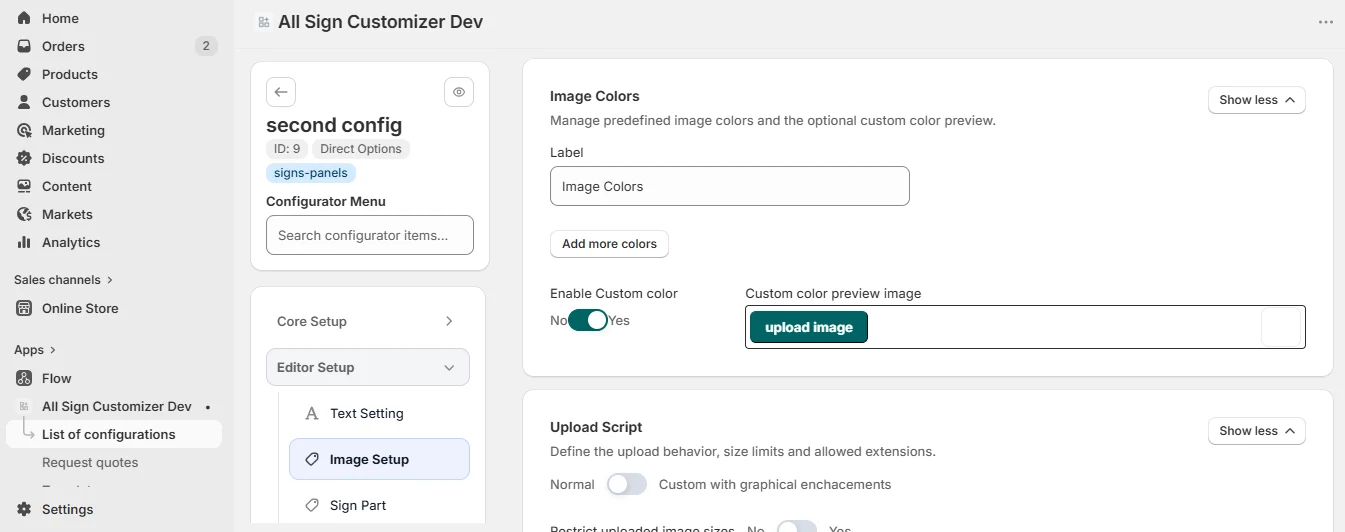
Image colors
Image Colors lets customers recolor a single-color logo with your predefined colors (for engraving or vinyl cutting), with an optional custom color.
Cutlines for stickers and contour cuts
Cutlines add a contour around the artwork for the cutting plotter: the First Cutline with its border size in the print-ready file, an optional Second Cutline, the space between the two, and the border color.
Filters and scenes
- Filters — effects customers may apply to photos: greyscale, sepia, blur, sharpen, emboss and color tints.
- Scenes — background photos (a wall, a shop front) used to preview the sign in situ. Use the default scenes or upload your own.
Cliparts
Customers without a logo can pick a clipart. In Libraries › Cliparts, select existing clipart groups from Manage Cliparts or create a group — uploaded images or groups from the built-in API (arrows, symbols, prohibitions & warnings, animals…). Each clipart can carry an additional price.
In preset designs
In Build from Presets, uploads go into the image zones of each design, with their own formats, size limits and fit mode (contain, cover, stretch). See Create a Preset-Based Configuration.
Get product news by email
New features, release notes and setup tips — a few emails a year.