
Fixing Methods
Offer mounting and installation choices such as holes, standoffs or other sign fixing options.
Fixing methods tell the customer — and your workshop — how the sign will be installed: screws, caps, standoffs, adhesive tape, hanging chain, suction cups, table stand, magnetic strip…
Two levels: library and configuration
Global Settings › Fixing method holds every method you offer, with its icon, description and the long text of its info popup.
Core Setup › Fixing Methods picks the methods this product accepts, with their price and restrictions.
In Build from Presets, each design selects its fixings — or carries a custom fixing layer.
Add a fixing method to a configuration
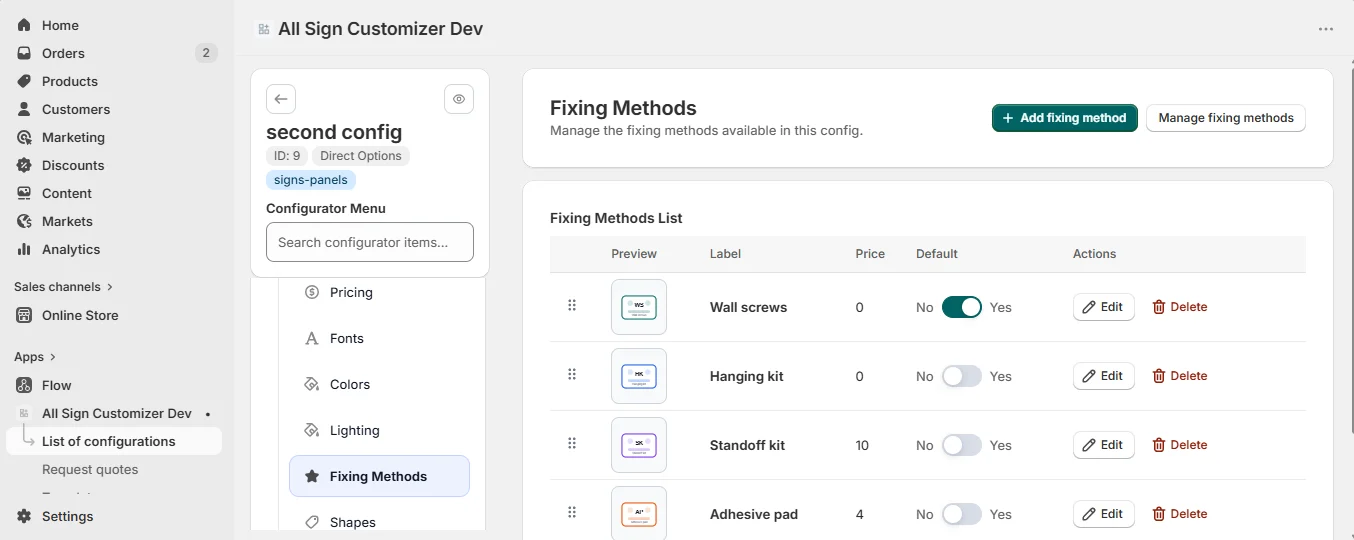
Click Add and choose the Source:
- Managed — pick a method from the global library. It keeps its icon and description everywhere. This is the usual choice.
- Custom — create a method for this configuration only: label, description, preview image.
Then set:
- Additional price — the cost of the hardware and the drilling.
- Exclude sizes — hide the method on sizes where it does not fit (no four standoffs on a 100 mm tag).
- Exclude shapes — hide it on shapes that cannot receive it.
Managed methods come from Global Settings. If all of them are already used, add the new one in Global Settings › Fixing method first, or switch to Custom.
On the sign
The selected method is drawn on the preview (holes, caps, standoffs at the corners) and listed in the order recap, so production knows what to drill and what to pack. For preset designs with unusual silhouettes, a custom fixing layer — an SVG drawn at the size of the plate — places each fixing exactly where it belongs.
Checklist
- The default method is the one most customers need.
- Methods are excluded on sizes and shapes where they cannot be installed.
- Descriptions say what is included (screws, plugs, caps…).
Get product news by email
New features, release notes and setup tips — a few emails a year.