Sizes & Shapes
Control dimensions, allowed size choices and the overall shape of the customized product.
Size drives the price of most signs, and the shape gives them their silhouette. Both are set in Core Setup.
Predefined sizes
Open Core Setup › Sizes and click Add new size.
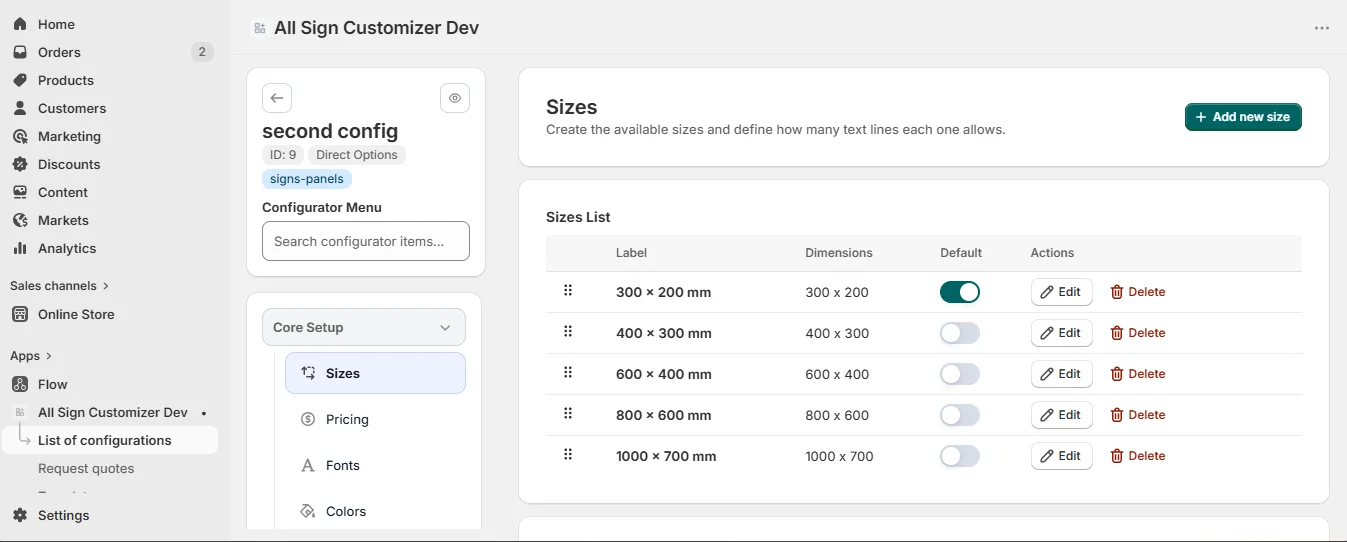
- Label — what customers read: “A4 — 300 × 210 mm”, “Small”.
- Width and Height — in the unit of the configuration. They define the surface used by the pricing profile.
- Number of text lines and Max text chars — how much text this size can hold, so a small door tag cannot receive a paragraph.
Set one size as Default: the configurator opens on it.
“Door tag (150 × 50 mm)” helps customers more than “150 × 50”. Keep the dimensions in the label: they appear in the order recap.
Size settings
Under the list, Size Settings control how the size step behaves in the configurator. These settings apply to Build by Options configurations; in Build from Presets, each design picks its own sizes.
| Setting | Use it to… |
|---|---|
| Title / Description | Rename the step (“Choose your size”) and add a hint. |
| Thickness | Offer thicknesses (3 mm, 5 mm, 10 mm…). Each value adds a fixed price or multiplies the total. |
| Custom Size | Let customers type a width and height between a minimum and a maximum. Custom sizes are priced by the material’s pricing profile. |
| Predefined Sizes Visibility | Keep or hide the predefined list when custom size is on. |
| Customer Measurement Units | Let customers switch units (mm, cm, m, in, ft). The base unit always stays. |
| Orientation switcher | Let customers flip a size between portrait and landscape (width and height swap), with your own labels and default orientation. |
Custom size on, width 100–2000 mm, height 100–1000 mm, predefined sizes kept visible as shortcuts, inches offered as a second unit for US customers.
Shapes
Core Setup › Shapes lists the silhouettes offered: rectangle, rounded corners, oval, arched top, arrow, cut-to-shape… Each shape comes from your shared library (Global Settings › Shapes) and can carry an Additional price for the extra cutting work.
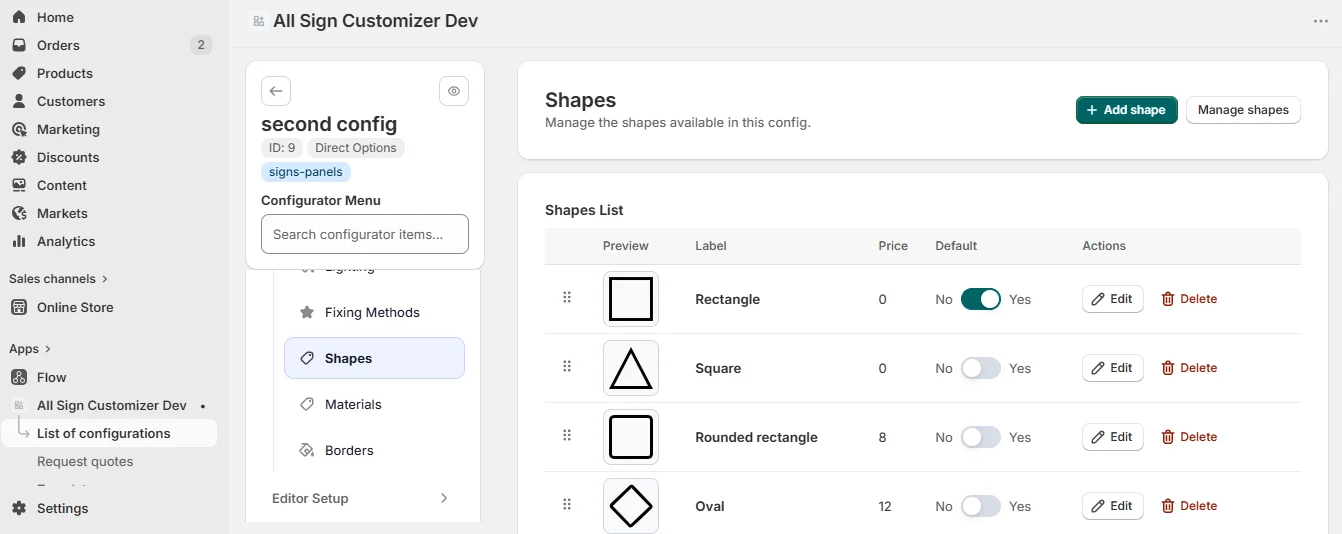
To make a new silhouette available to every configuration, add it once in Global Settings with an SVG icon, then select it here. In Build from Presets, a design can also carry one custom SVG shape of its own.
Checklist
- The default size is your best-seller.
- Text limits per size match what you can produce.
- Custom size limits match your largest sheet and smallest cut.
- Shapes with extra cutting cost carry an additional price.
Get product news by email
New features, release notes and setup tips — a few emails a year.