
Create a Banner Configuration
Sell made-to-measure vinyl, mesh and fabric banners priced by surface, from the starter template to your own production rules.
Sell made-to-measure banners
Vinyl, mesh and fabric banners for events, shop fronts and fences: customers choose the size and material, add their text or artwork and pick how it will be hung. The price follows the surface.
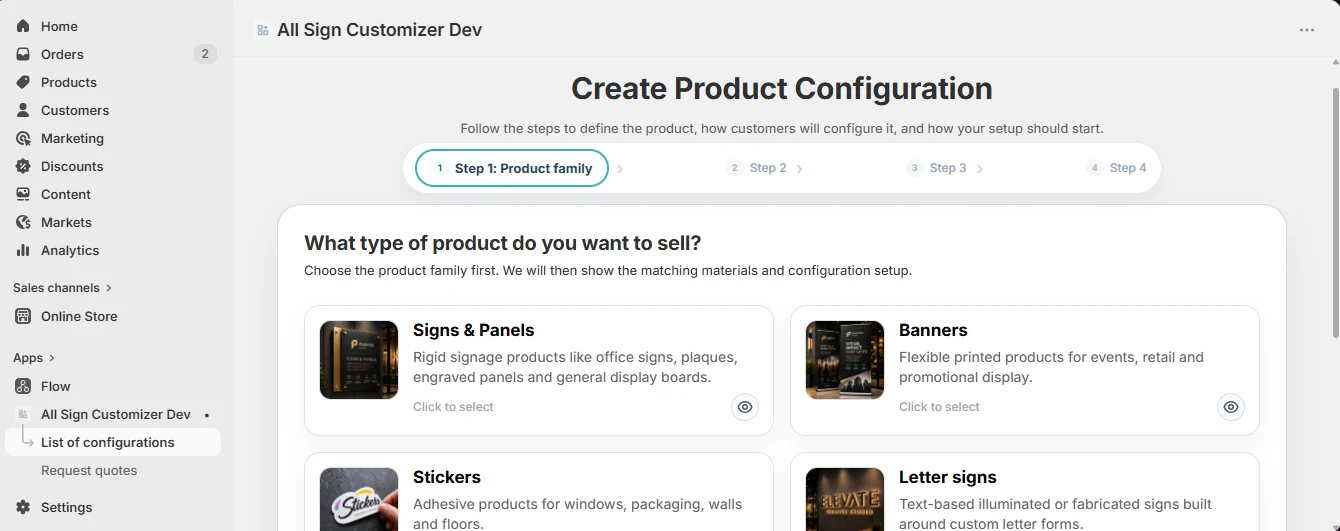
1. Choose Banners
Open Configurations › Add new configuration and select the Banners family — “flexible printed products for events, retail and promotional display”.
2. Choose the banner material(s)
Select one or several of Vinyl, Mesh (wind-permeable, for fences and scaffolding) and Fabric (indoor, premium look). Each becomes a choice in the configurator, with its own pricing profile.
3. Setup model: Build by Options
Banners are built option by option: size, material, shape, finishing, text and artwork. The wizard selects Build by Options for you.
4. Name it and connect the Shopify product
Give the configuration an internal name (“Banners — events”) and select the Shopify product that opens it.
5. Include the starter template
Choose Include starter template and the language of the demo texts. The configuration is created ready to test with:
- Sizes from 1000 × 500 mm to 3000 × 1500 mm;
- Pricing profiles for standard, mesh, fabric and large banners;
- Fixing methods: eyelets, hanging, pole attachment, ceiling, flag;
- Inputs such as event date, event location and “Need approval proof?”;
- a set of fonts, shapes and borders.
Click Create configuration.
6. Adapt it to your production
- Core Setup › Pricing — set your price per m² for each material (see Pricing Recipes › Price per square meter).
- Core Setup › Sizes — keep your popular formats and turn on Custom Size with your machine limits.
- Core Setup › Fixing Methods — price the eyelets, pole pockets or ropes you actually offer.
- Editor Setup › Image Setup — accept high-resolution uploads (PNG, SVG, PDF via Upload Design) and set a minimum width.
- Additional Options › Inputs — keep the questions your team really needs before printing.
7. Preview and test
- The price grows with the surface and changes with the material.
- Custom sizes outside your limits are refused.
- An uploaded artwork stays sharp at 3 meters wide.
- The order recap lists size, material, fixing and inputs.
Go deeper
Get product news by email
New features, release notes and setup tips — a few emails a year.