
Create a Channel Letter Configuration
Build a complete Channel Letter product with advanced pricing, configurable letter parts, textures and production-ready sign options.
Build your Channel Letter product
This guide follows a complete Acrylic Letter Sign example and shows how to configure sizes, advanced pricing, fonts, letter construction, textures and the optional sign extras customers can choose.
Channel Letter configurations use Letter Types. A Letter Type groups the construction choices for a letter: Face, Trim, Side and Back Lit. Each active part can then have its own textures, colors, visual effects, availability rules and optional pricing.
1. Choose the Channel Letter material
Create a new configuration from List of configurations and choose Letter Signs. ASO then asks which lettering product you want to sell.
Channel Letter configurations can start from Acrylic Letter Signs, Metal Letter Signs or Wood Letter Signs. In this guide, we use Acrylic Letter Signs so the remaining steps form one concrete workflow.
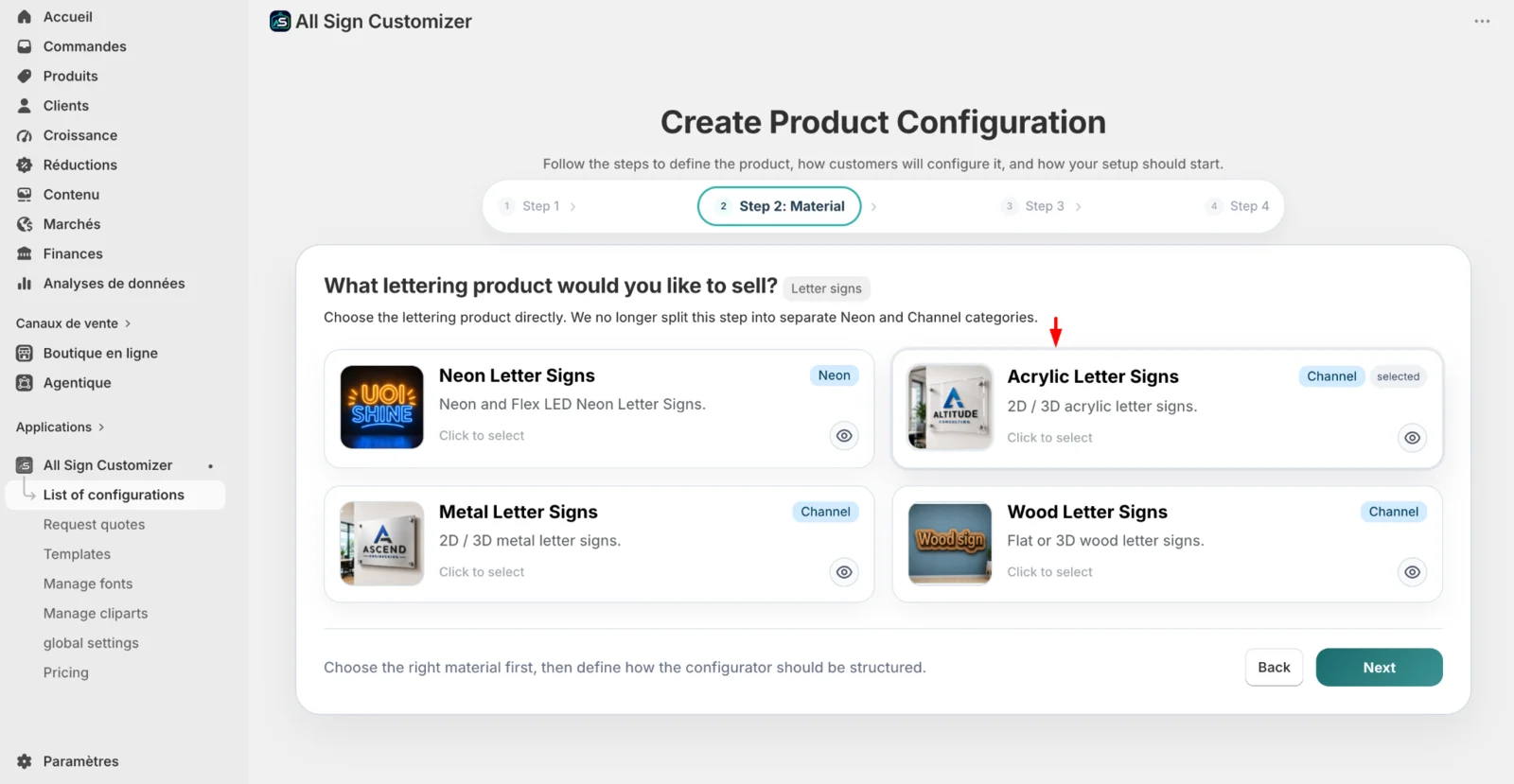
If you also sell Metal or Wood letters, create the configuration that matches that product rather than mixing unrelated manufacturing choices into the Acrylic example.
2. Choose Advanced pricing
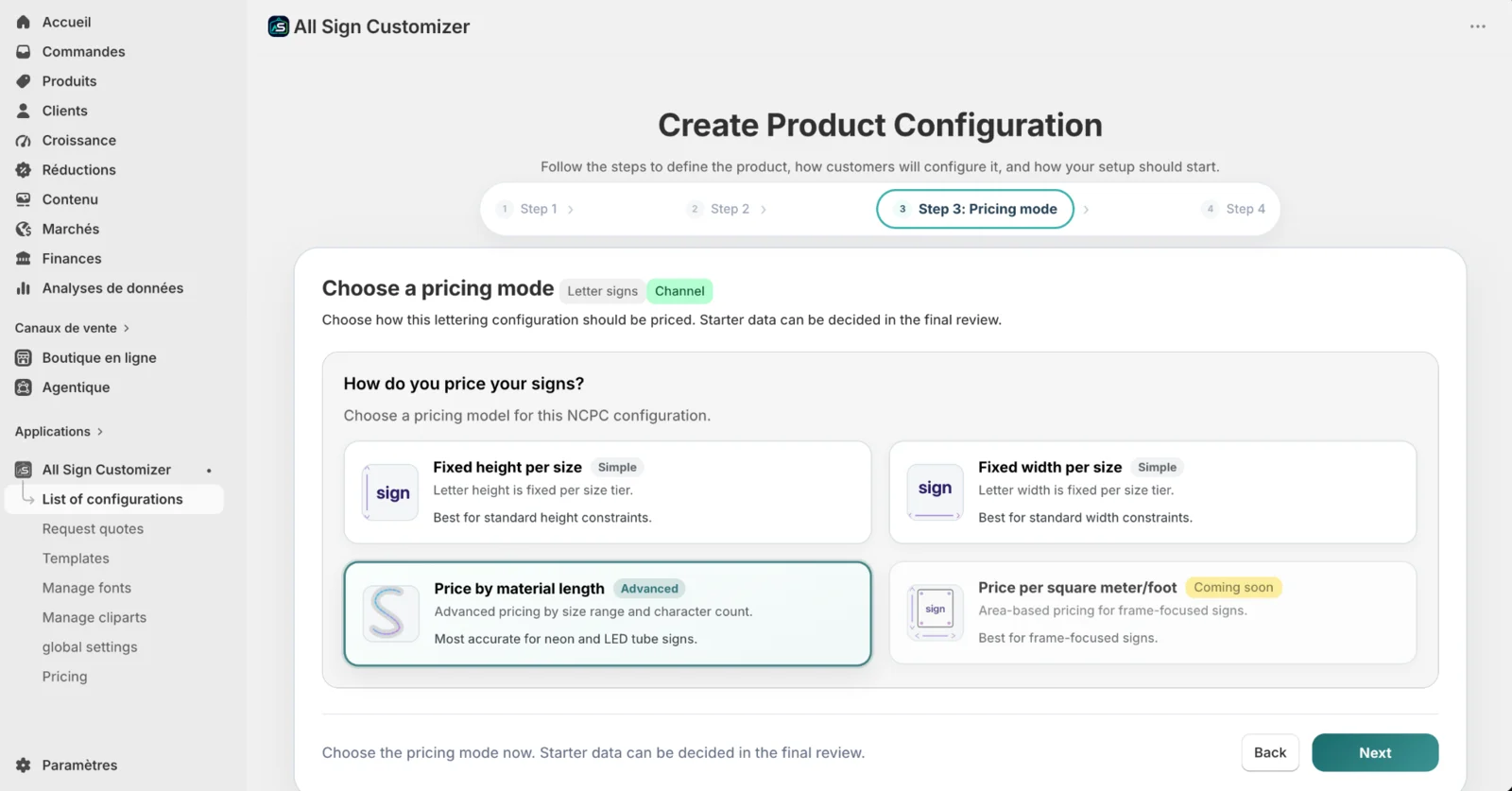
At Step 3: Pricing mode, choose how ASO should price the lettering. The available choices shown here include Fixed height per size, Fixed width per size and Price by material length. The area-based option is marked Coming soon in the current interface.
For this guide, select Price by material length. ASO labels this as the Advanced mode, and we will use that configuration throughout the rest of the tutorial.
3. Configure sizes and dimension limits
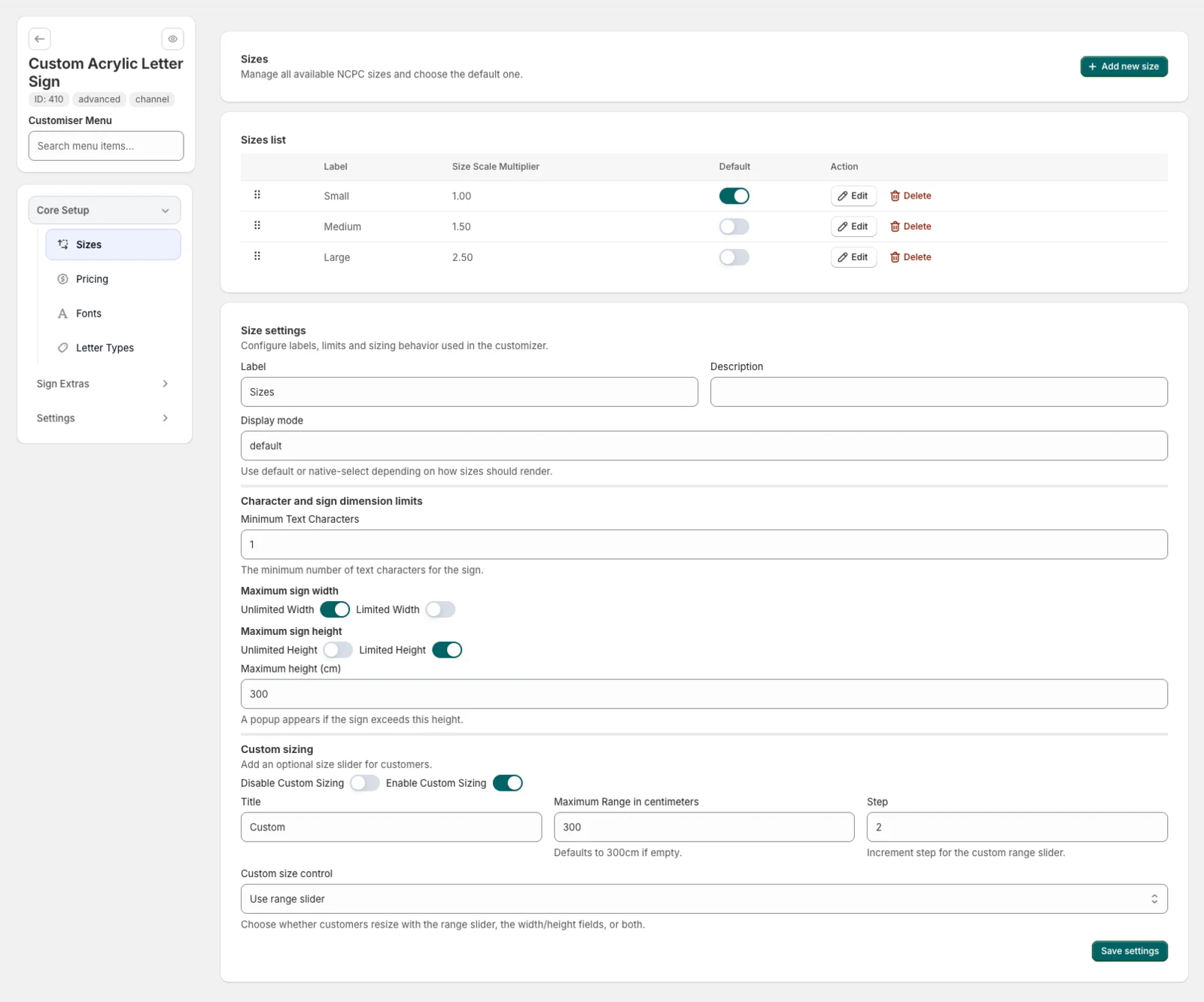
Open Core Setup → Sizes. Add the size choices customers can select and choose the default. Each size has a Size Scale Multiplier; in the example shown, Small is 1.00, Medium 1.50 and Large 2.50.
Set character and sign limits
Use Minimum Text Characters to define the minimum amount of text required. You can also leave the sign width or height unlimited, or enable a maximum dimension when your production workflow has a physical limit.
In this example, width remains unlimited while height is limited to 300 cm. The interface indicates that a popup is shown if the generated sign exceeds the configured maximum height.
Allow custom sizing when needed
Enable Custom Sizing when customers should be able to resize the sign beyond the predefined size choices. Define the maximum range and the increment Step, then choose the customer control. The interface can use a range slider, width/height fields, or the available sizing control configured for the product.
4. Configure the Advanced pricing profile
Open Core Setup → Pricing. Pricing profiles define how ASO calculates the lettering cost. Since this guide uses Price by material length as the configuration mode, create the pricing profile that will be used by the fonts in this Channel Letter product.
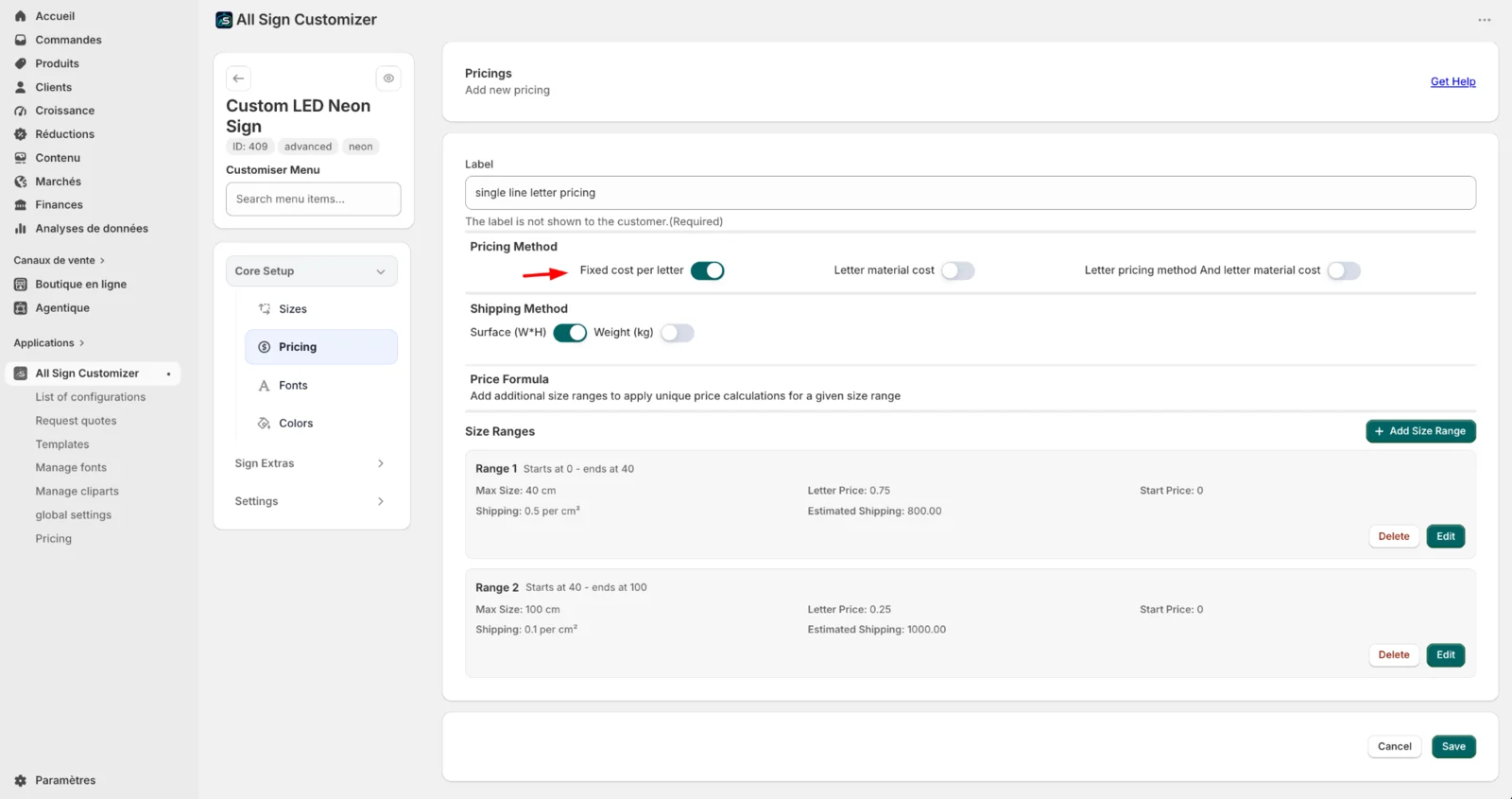
The pricing editor supports several letter-pricing methods. The fields shown by ASO change according to the selected method. The available methods include Fixed cost per letter, Letter material cost, and Letter pricing method And letter material cost.
For a profile that uses fixed letter pricing, define the required Size Ranges. Each range can contain the maximum size and the pricing values used for that range. Depending on the selected method, ASO can also expose material-cost and shipping-related values.
The pricing profile is later assigned to one or more fonts. This lets ASO combine the selected font, the entered text, its calculated dimensions and the pricing rules configured for that profile.
5. Add fonts and letter measurements
Open Core Setup → Fonts. Add the typefaces customers can choose when entering their Channel Letter text, reorder them when needed, and select the default font.
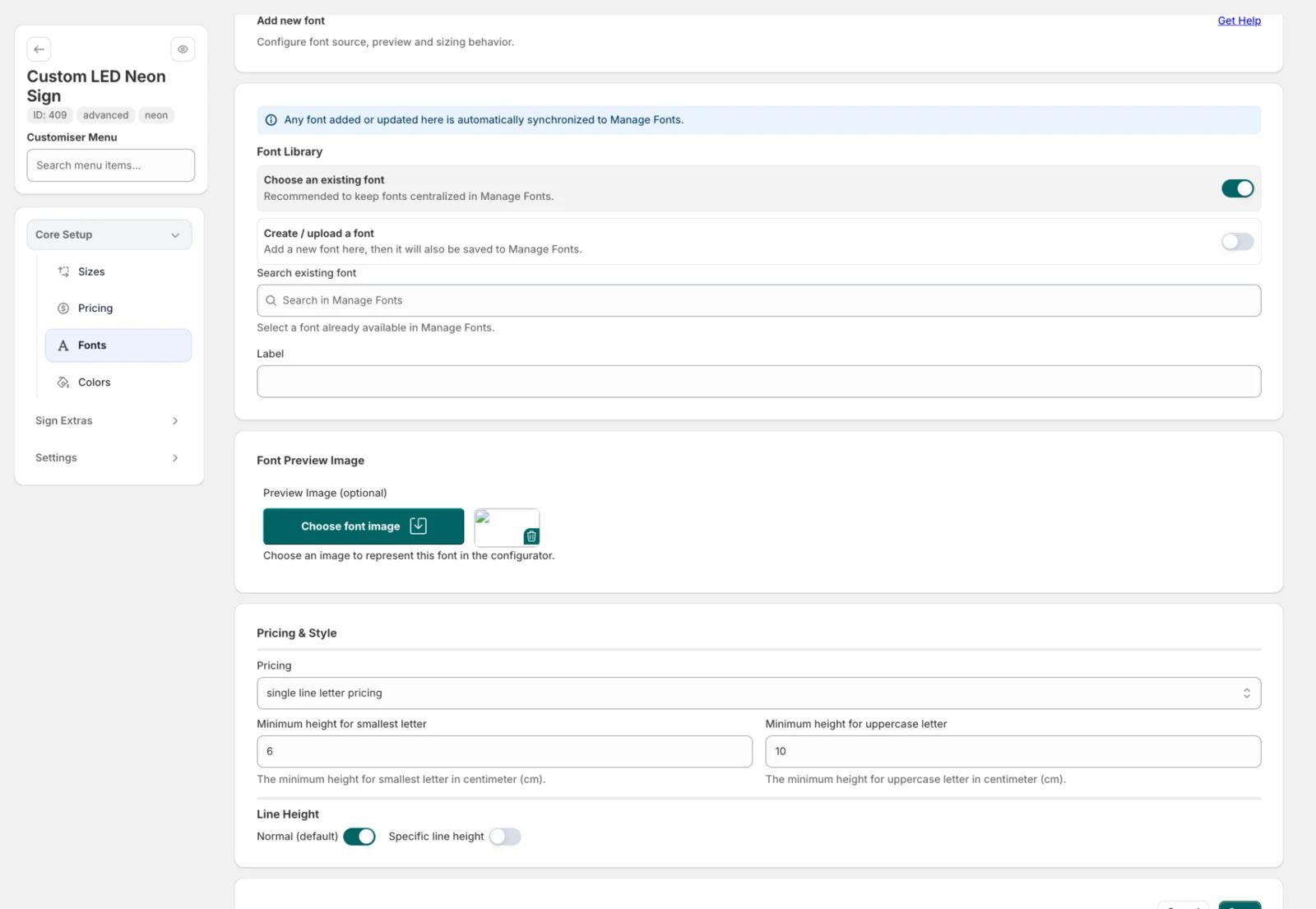
When adding a font, you can select a font already available in Manage Fonts or create/upload a font. ASO supports managed fonts, Google fonts and custom .ttf font files. Fonts added or updated from the configuration are synchronized with the font library.
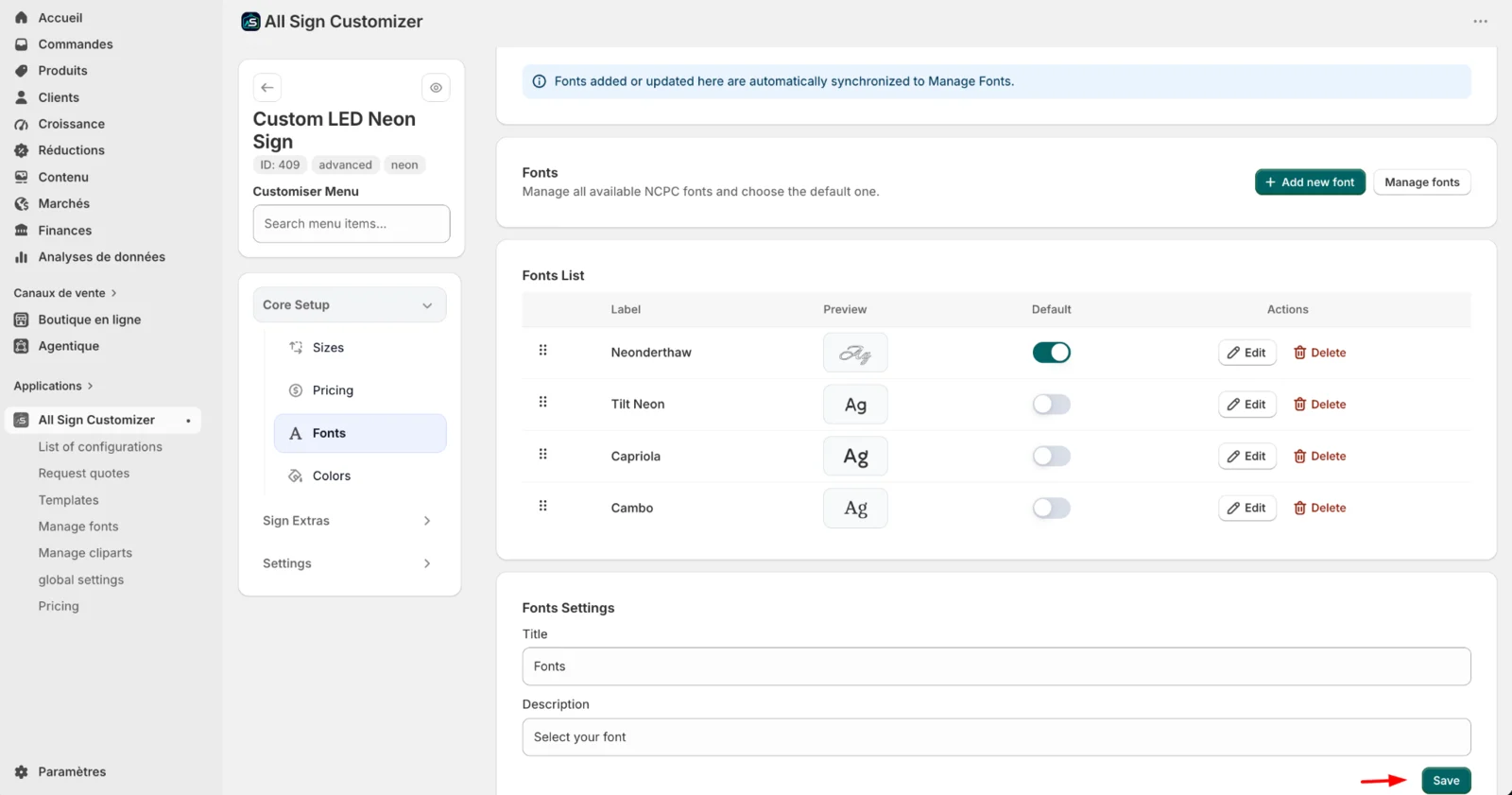
Assign the appropriate Pricing profile to the font. For the letter-pricing workflow used here, ASO also asks for Minimum height for smallest letter and Minimum height for uppercase letter. These measurements help the configurator calculate the physical dimensions of the customer’s text more accurately.
You can also control the font’s Line Height, using the normal/default behavior or a specific line height when your product requires it.
Different fonts can produce different physical dimensions for the same word. Supplying the requested letter-height measurements helps ASO keep calculated dimensions and pricing aligned with the typography selected by the customer.
6. Create a Letter Type
Open Core Setup → Letter Types. A Letter Type represents one letter construction you want customers to choose from. You can create several Letter Types inside the same Channel Letter configuration and give the section its own customer-facing title and description.
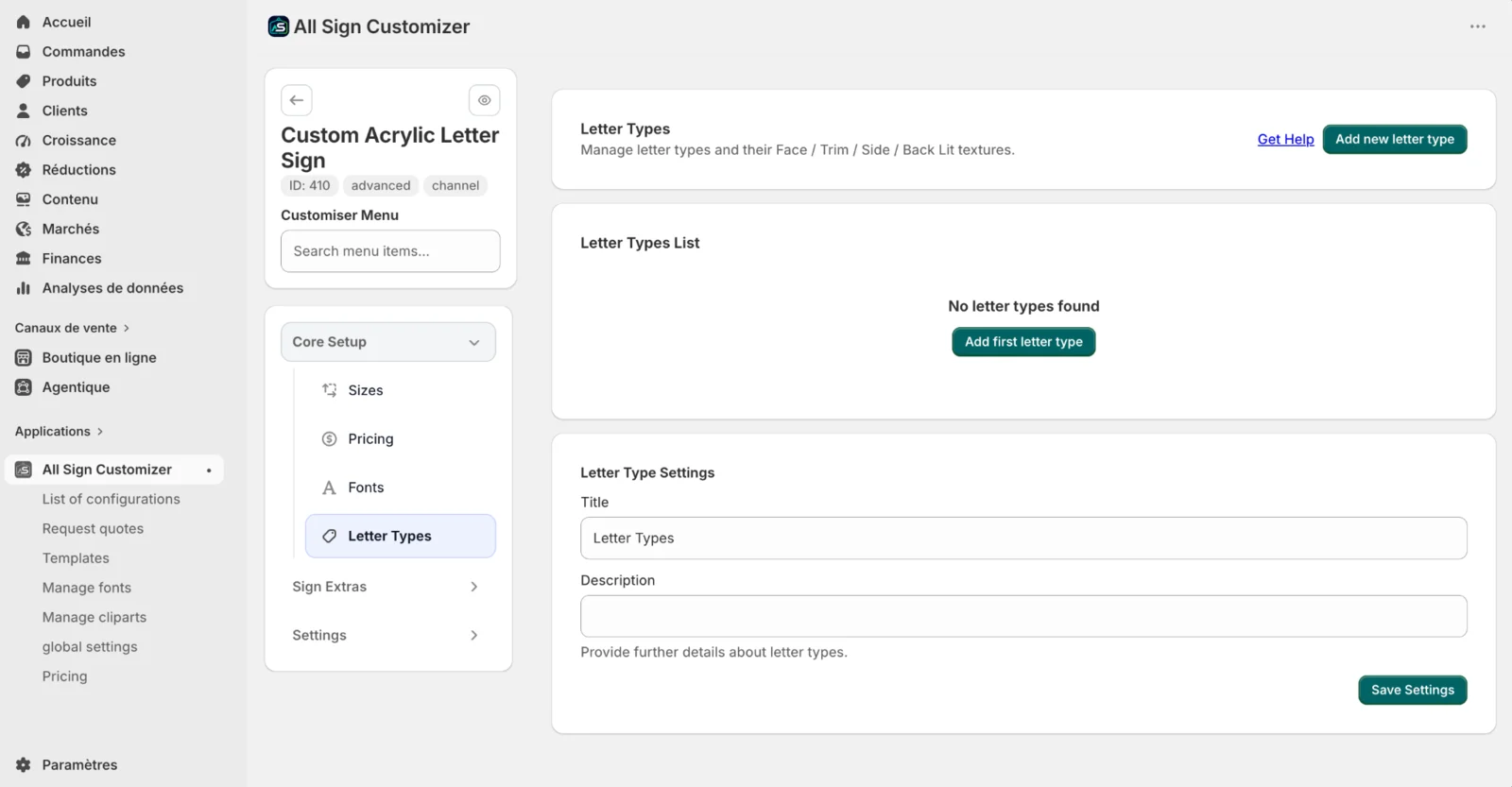
Click Add new letter type. Give it a clear label, such as Modern letter, add an optional description and provide preview or popup images when they help customers understand the construction. A Letter Type can also have an optional Base Price or Multiplier.
7. Choose the parts included in the Letter Type
Each Letter Type is built from individual Letter Parts. The current Channel Letter editor exposes Face, Trim, Side and Back Lit.
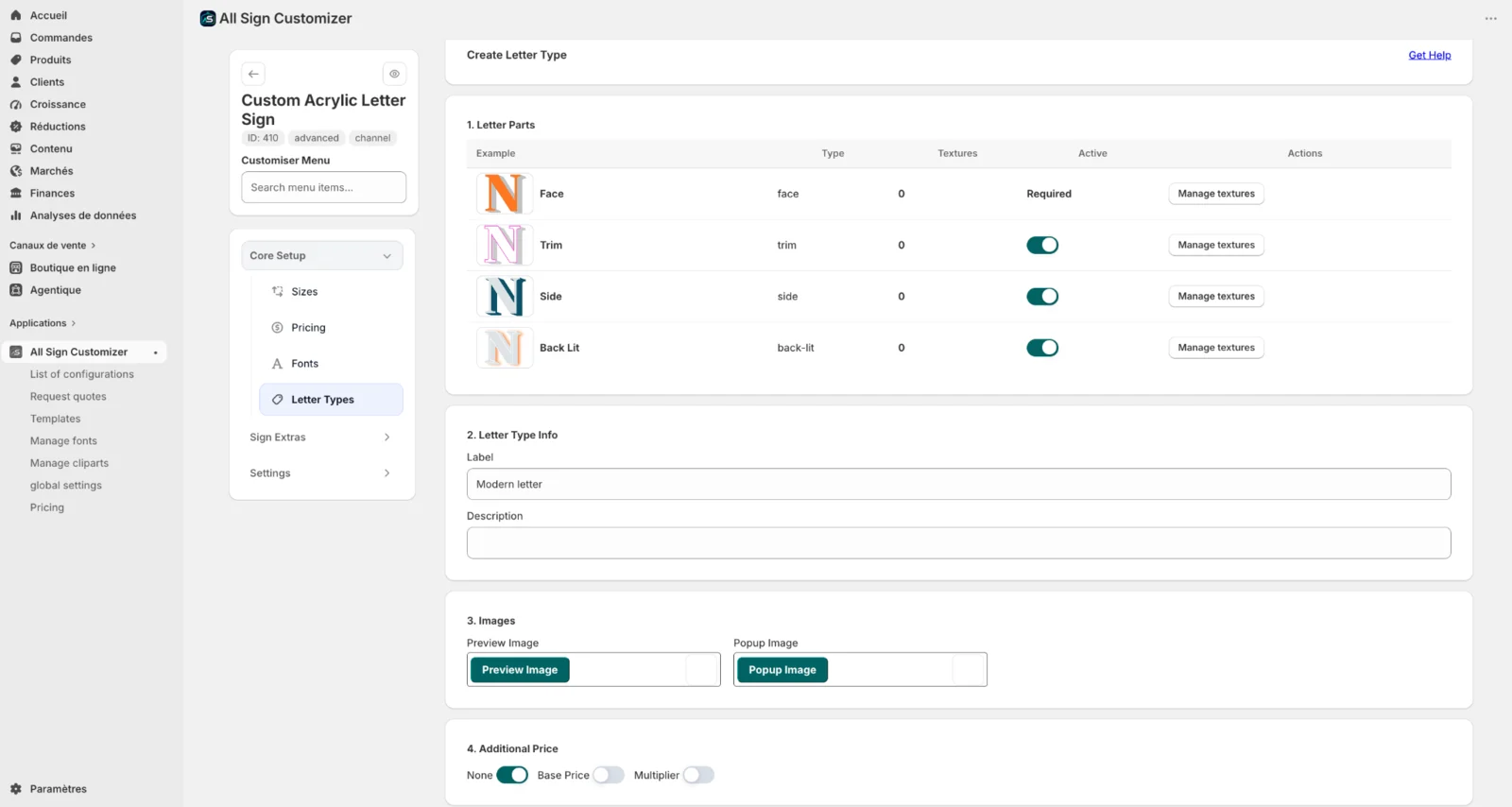
The Face is required. Trim, Side and Back Lit can be enabled or disabled for the current Letter Type. Only activate the parts that are actually available for that construction.
Each part has a Manage textures action. This is where you define the colors or finishes available specifically for that part.
8. Add textures to each Letter Part
Click Manage textures beside a part such as Face. Textures are managed independently for each Letter Part, so the Face, Trim, Side and Back Lit can each offer a different set of colors or finishes.
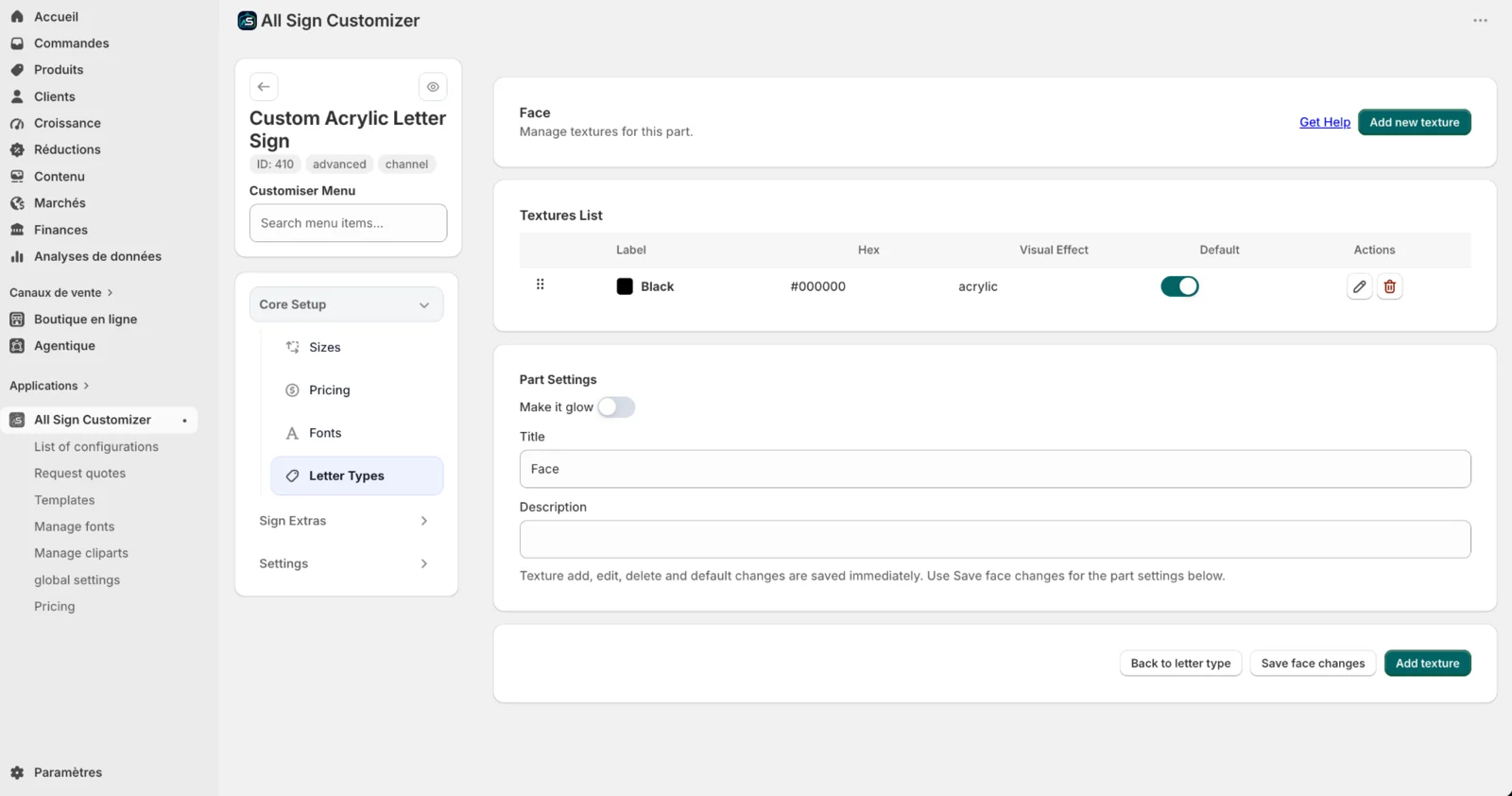
The part settings also include Make it glow. Enable this when that part should use the lighting effect provided by the Channel Letter configurator. You can also customize the customer-facing title and description for the part.
Configure a texture
When adding a texture, enter its Label and color, then select the appropriate Visual Effect. In the Acrylic example shown, the selected effect is Acrylic – Displays as single color.
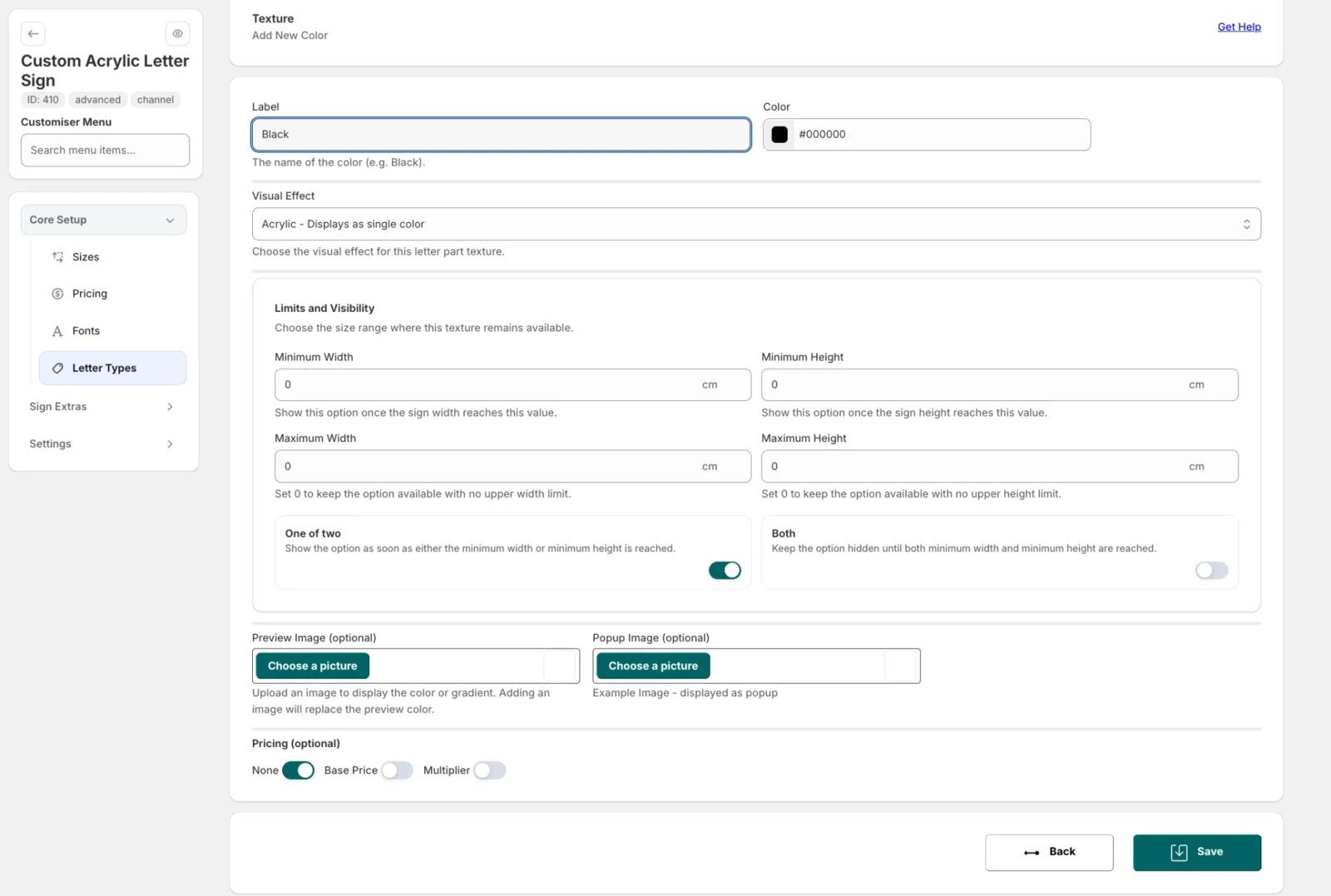
A texture can also have production-based availability rules. Use Minimum Width, Minimum Height, Maximum Width and Maximum Height to define the size range where the option remains available. The interface notes that a maximum value of 0 keeps that dimension without an upper limit.
The One of two option makes the texture available when either minimum width or minimum height is reached. Both keeps it hidden until both minimum conditions are reached.
Finally, add an optional Preview Image or Popup Image and choose whether the texture has no additional price, a Base Price, or a Multiplier.
Do not think of a Channel Letter texture as one global product color. The structure is Letter Type → Letter Part → Texture. This lets the Face, Trim, Side and Back Lit use different customer choices while remaining part of the same letter construction.
9. Configure Channel Letter Sign Extras
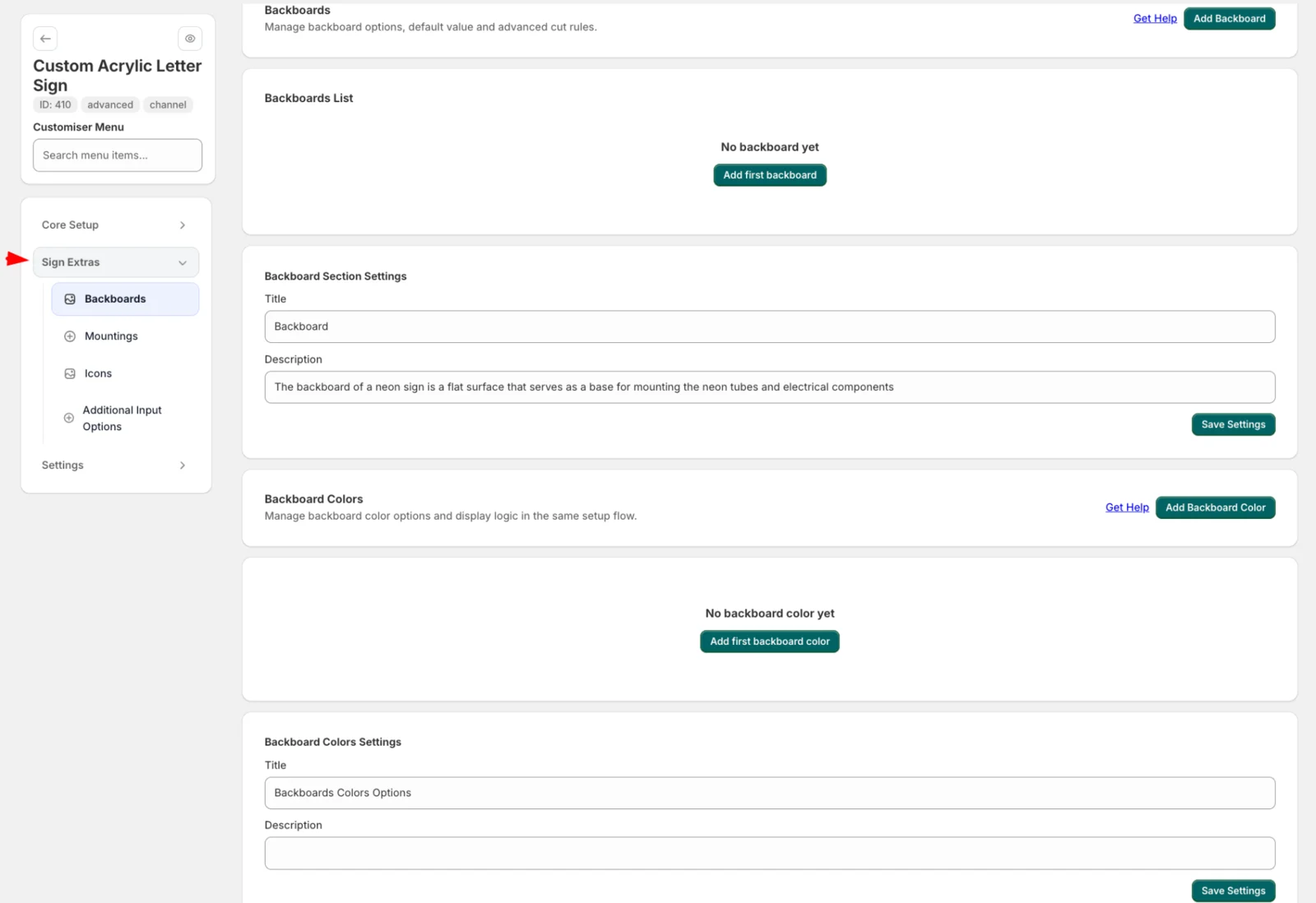
After the Letter Types are ready, expand Sign Extras. Channel Letter configurations provide Backboards, Mountings, Icons and Additional Input Options. Configure only the extras that correspond to choices you actually manufacture or sell.
Add backboards
Open Sign Extras → Backboards to define the physical support options available behind the letters. Click Add Backboard, enter the customer-facing label and description, then choose the appropriate Backboard Type.
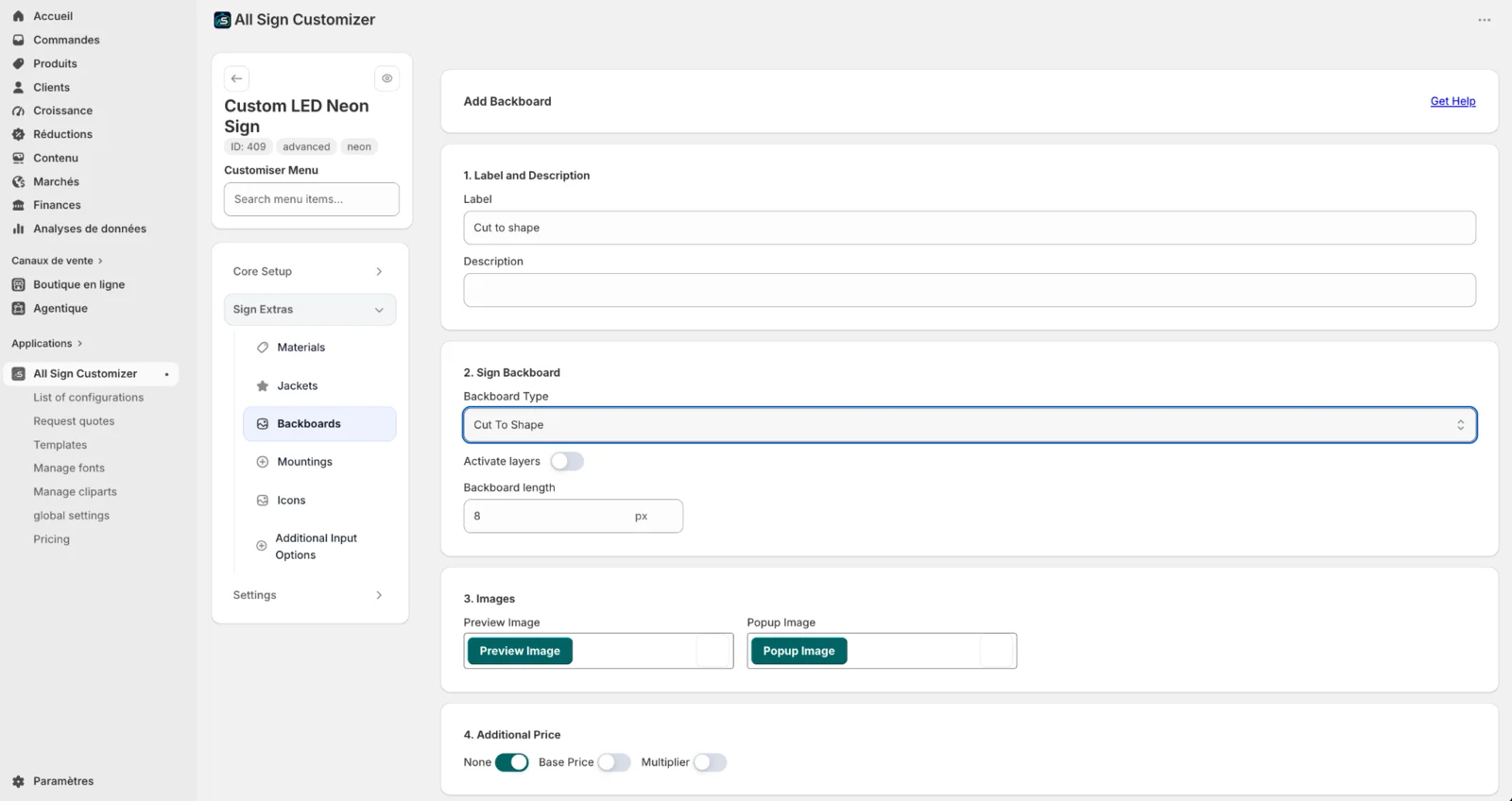
The editor can expose backboard-specific controls such as Activate layers and Backboard length. Add a Preview Image or Popup Image when customers need a visual example. If the backboard changes the product price, choose the available Base Price or Multiplier option instead of leaving Additional Price at None.
Add backboard colors
Backboard colors are managed separately from the backboard itself. This allows one backboard option to offer several colors or finishes without duplicating the complete backboard setup.
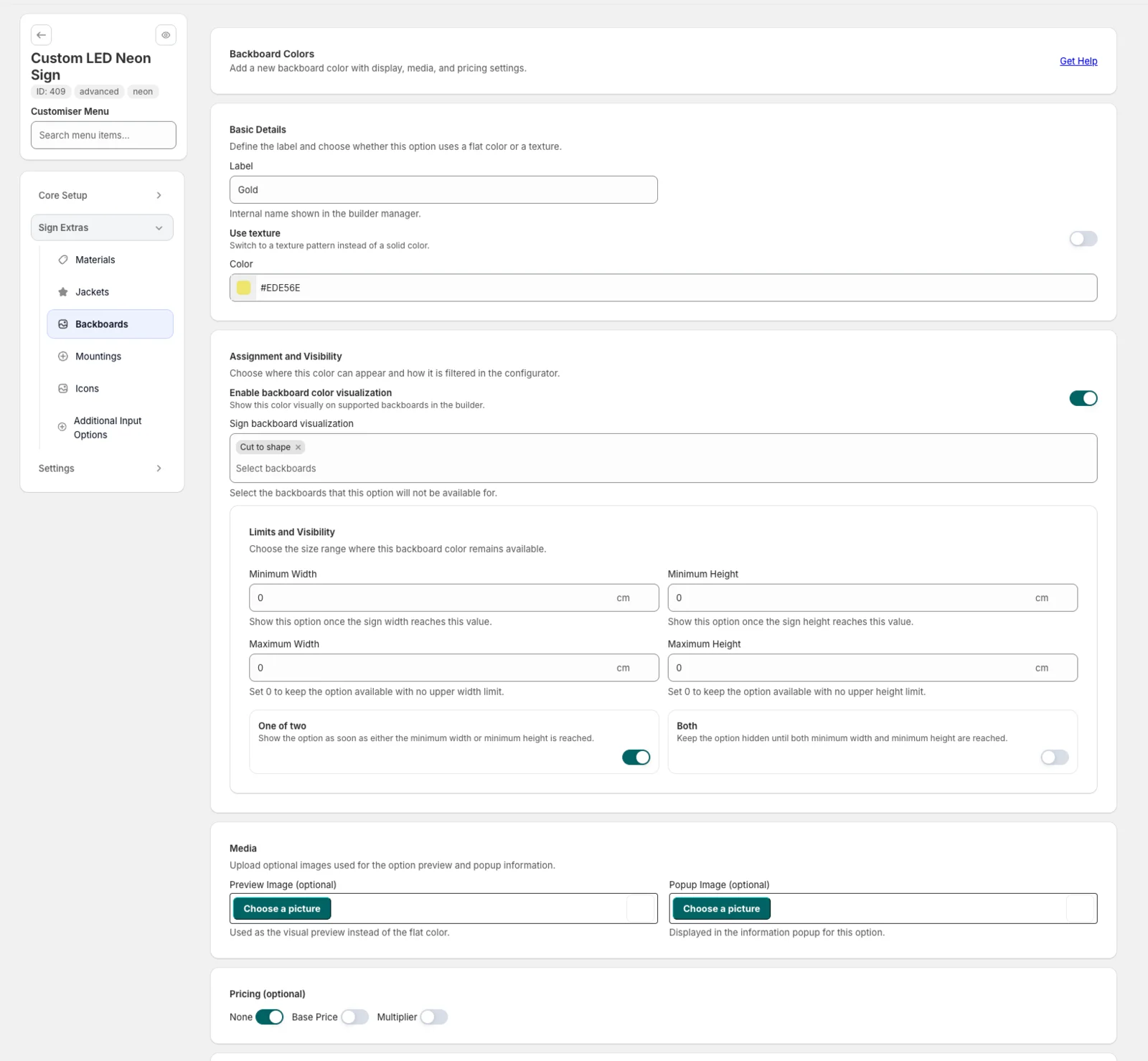
For each backboard color, enter its label and choose whether the option uses a normal color or a texture. Enable backboard color visualization when the selected finish should be represented in the builder, then configure which backboards the option applies to.
You can also use Minimum Width, Minimum Height, Maximum Width and Maximum Height to keep a finish within the dimensions you manufacture. One of two makes the option available when either minimum dimension is reached; Both waits until both minimum conditions are satisfied. Preview/popup images and optional Base Price or Multiplier pricing are available as well.
Add mounting options
Open Mountings to define how customers can choose to install the finished sign. Create a mounting option, add its label and description, then choose the visual representation used by the configurator.
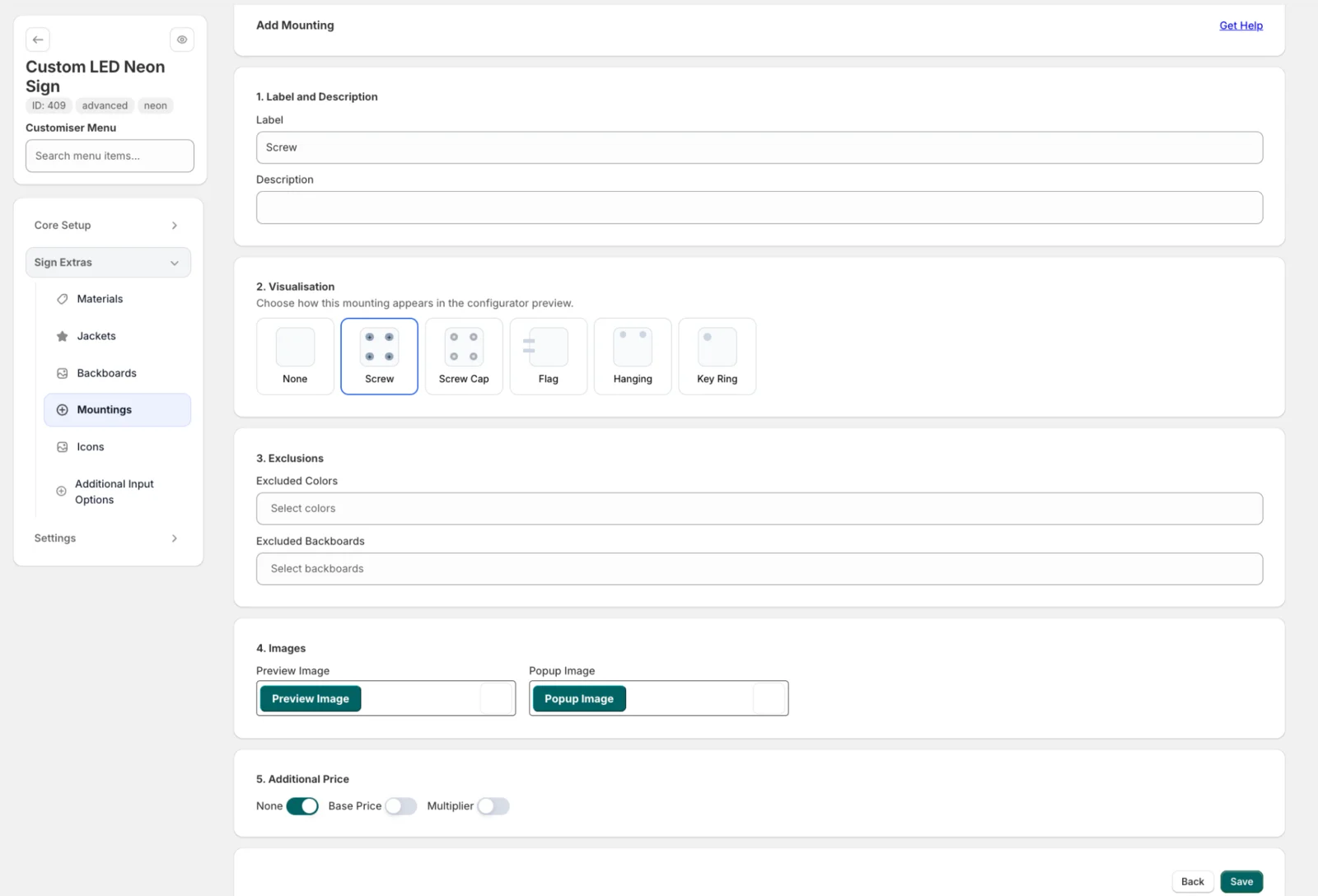
The available visualizations include None, Screw, Screw Cap, Flag, Hanging and Key Ring. You can exclude incompatible colors or backboards, provide preview/popup images, choose the default mounting from the mounting list and apply an optional additional price.
Use exclusions and availability rules when two options should not be sold together. This keeps the storefront choices aligned with the Channel Letter products your workshop can actually produce.
10. Optional: add Icons and additional customer inputs
Add SVG Icons
Use Sign Extras → Icons when customers should be able to add predefined graphic symbols alongside their Channel Letter text. Icons are optional; skip this section for text-only products.
Upload the icon as an SVG. ASO displays the source file and the processed preview used by the sign builder. Give the icon a name, define an optional Base price, and enter its Minimum height when required.
The Icons section can use its own Pricing profile, allowing icon costs to be calculated independently from the text lettering.
Add Additional Input Options
Open Additional Input Options when you need to collect a choice or information that is not covered by the standard Channel Letter controls.
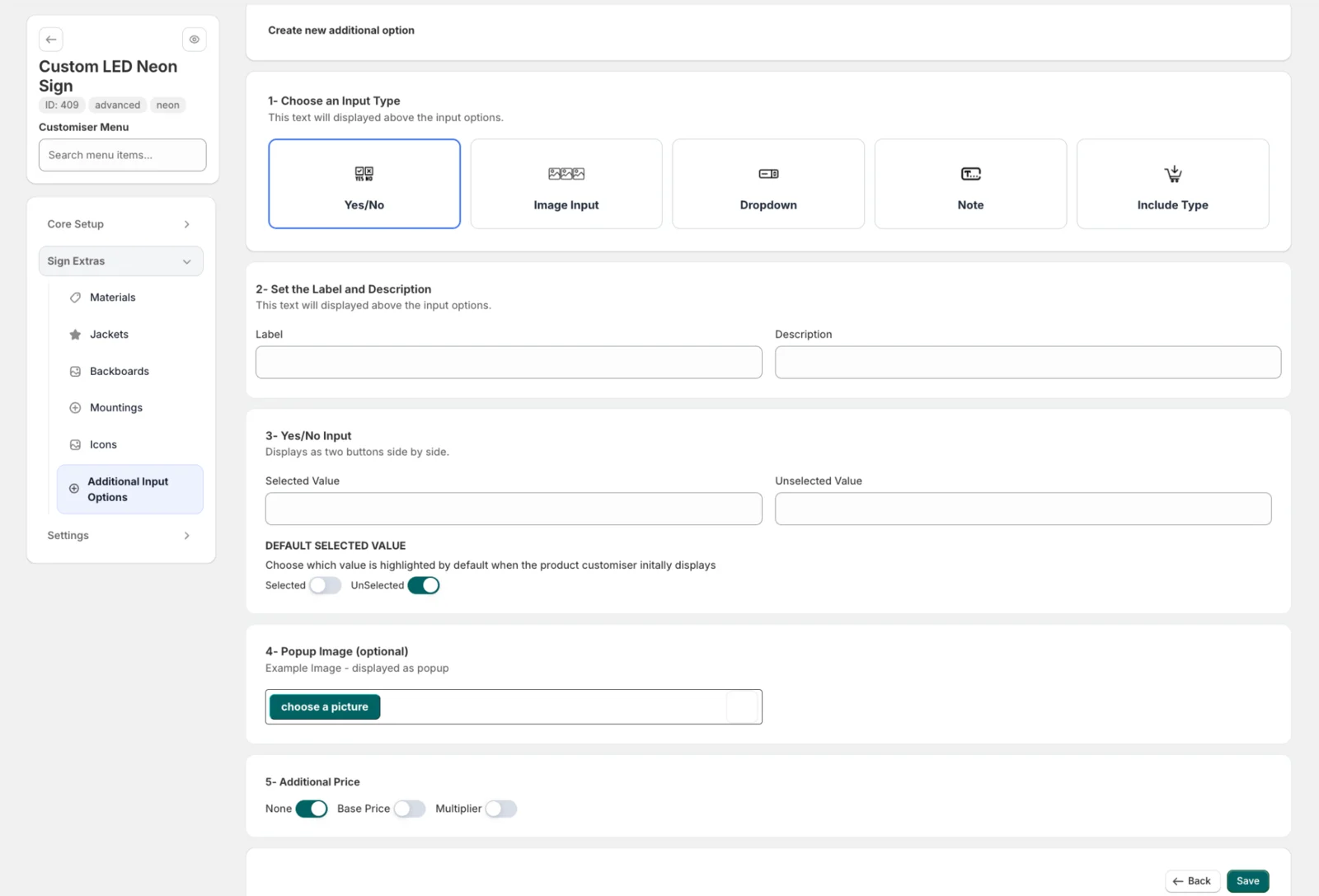
The available input types include Yes/No, Image Input, Dropdown, Note and Include Type. After choosing the input type, enter its customer-facing label and description and configure the values shown for that type.
Additional inputs can also include a popup image and optional Base Price or Multiplier. For example, a Yes/No option can represent an optional service, while a Dropdown can collect one choice from a predefined list.
Use additional inputs only when they represent a real sales, manufacturing or order-information requirement. A shorter configurator is easier for customers to complete.
11. Review the main customizer settings
Before testing the product, open Settings → Generals. These settings control how the Channel Letter configurator behaves on the storefront.
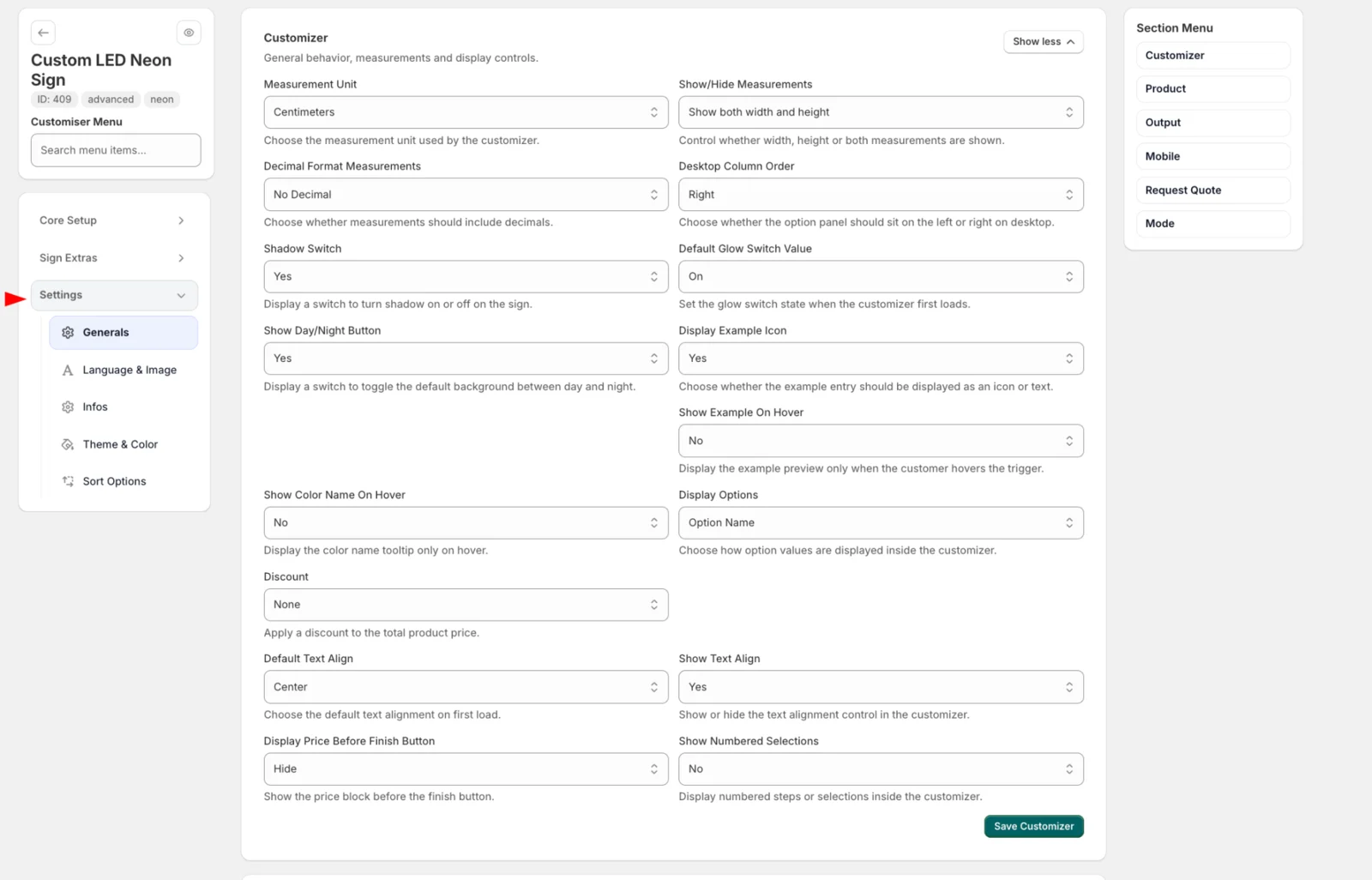
Check the settings that affect the customer experience, including the Measurement Unit, whether measurements are shown, decimal formatting, desktop column order, shadow and glow controls, the day/night button, text alignment, option display and whether the price appears before the Finish button.
You do not need to change every field. Keep the defaults that already match your storefront and adjust only the behavior required by the Channel Letter product. Click Save Customizer when finished.
Additional settings are available for Language & Image, Infos, Theme & Color and Sort Options, as well as other product, output, mobile, quote and mode controls. Get the complete product workflow working first, then refine presentation and secondary behavior.
12. Preview and test the complete Channel Letter product
Preview the configuration, then open the connected Shopify product and test it as a customer. Enter different text, switch fonts and sizes, select each Letter Type, and verify the available parts and textures for that construction.
Pay particular attention to the relationship between text → calculated dimensions → pricing, then test the Channel-specific structure Letter Type → Letter Part → Texture. Confirm that texture size rules, defaults, glow behavior, Backboards, Mountings and any additional price adjustments behave as expected.
Verify the default size and font, test short and long text, confirm the calculated dimensions and pricing, open every Letter Type, check that only the intended parts are active, verify each part’s default and available textures, test size-based texture visibility, and make sure the customer can continue through your normal Shopify purchase flow.
You now have the core structure for a configurable Channel Letter product: sizes, Advanced letter pricing, font measurements, multiple Letter Types, independent part textures and the optional sign extras required by your product.
Next step
Once the Channel Letter product works correctly, continue with Manage Configuration Display to choose where and how customers access the configurator on your Shopify storefront.
Get product news by email
New features, release notes and setup tips — a few emails a year.