
Quick Start: Create Your First Sign & Panel Configuration
Create your first Signs & Panels configuration with Build by Options and Demo Data, connect it to Shopify, and test it on your storefront.
Your first working Signs & Panels configuration in a few minutes.
No need to start from scratch: the starter template gives you a working configuration you can explore first and customize later.
1. Start a new configuration
From the ASO app, open Configurations and click Add new configuration. This opens the guided creation wizard.
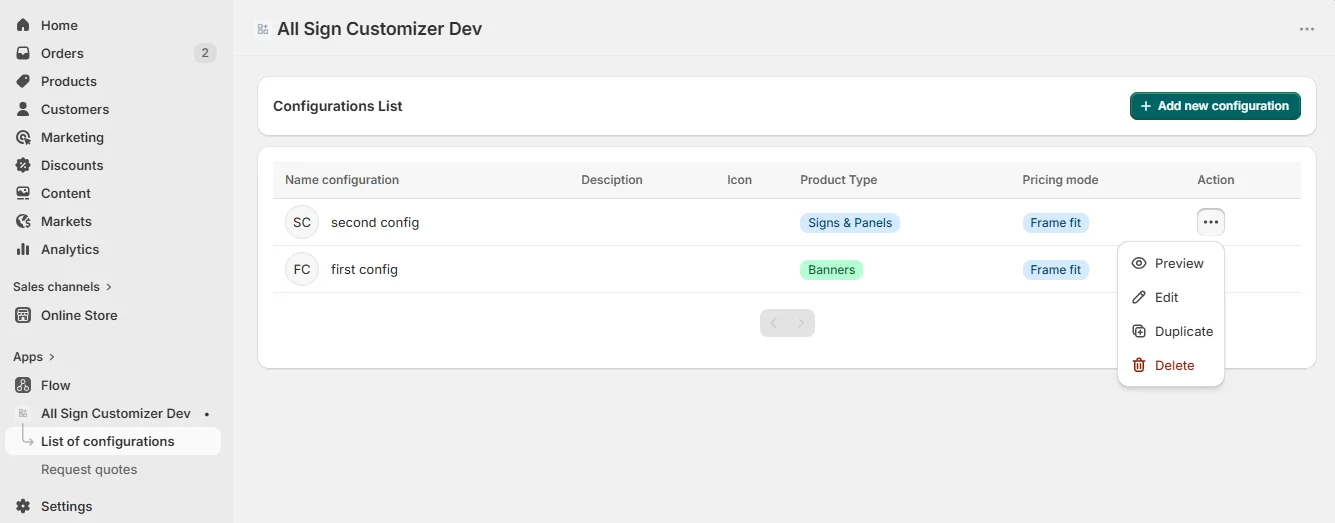
2. Choose what you want to sell
For this Quick Start, choose Signs & Panels. This gives you the simplest path for learning ASO with a real customizable sign product.
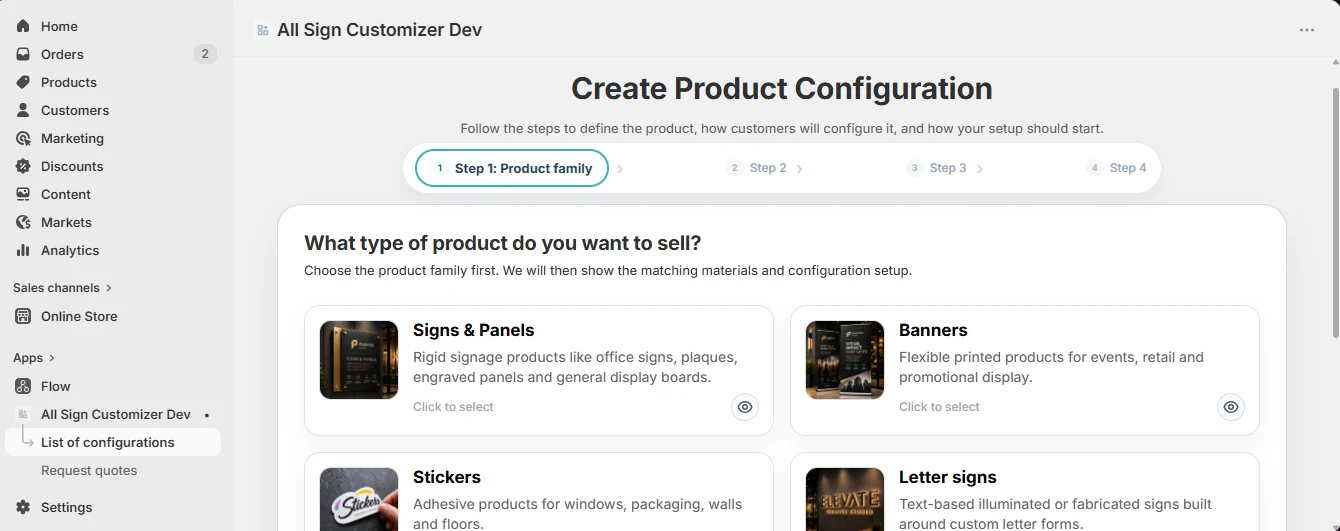
From this point forward, every step in this Quick Start follows the Signs & Panels workflow. Other product families have their own Getting Started guides, so you can stay focused on this first configuration.
3. Choose your materials
Because this Quick Start follows a Signs & Panels configuration, the next step is to choose the material or materials you want to offer for this product.
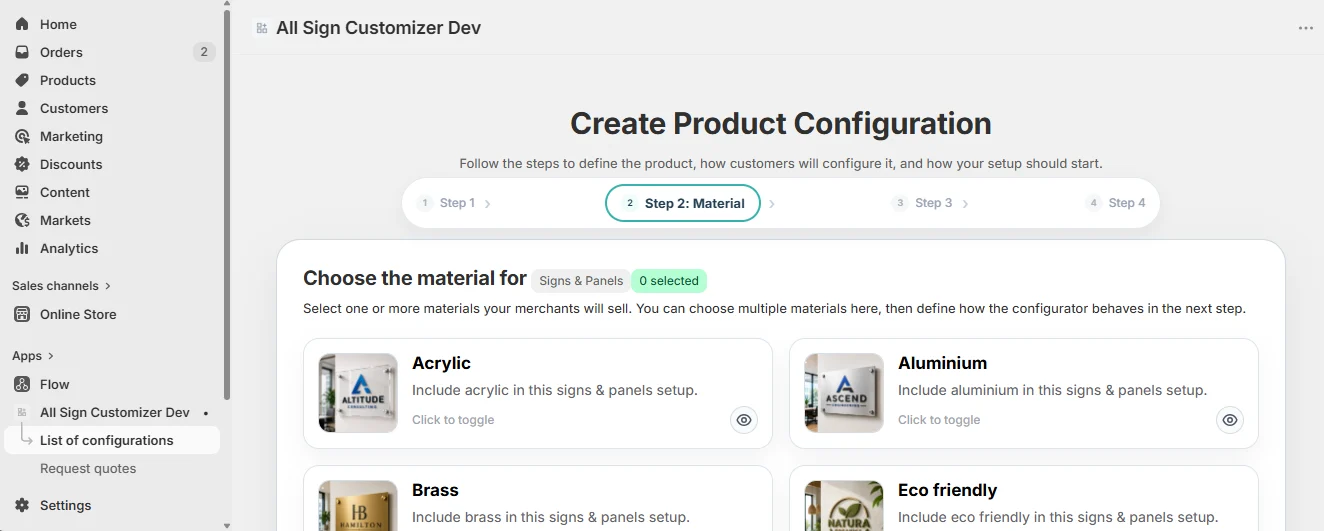
You do not need to configure every material setting during this Quick Start. Continue with an available material, then use the dedicated Materials & Colors guide to learn how to create, edit and customize materials.
4. Choose Build by Options
For this first Signs & Panels configuration, choose Build by Options. This lets customers build their sign by selecting the options you make available, such as size, shape, material, color, text, images and fixing methods.
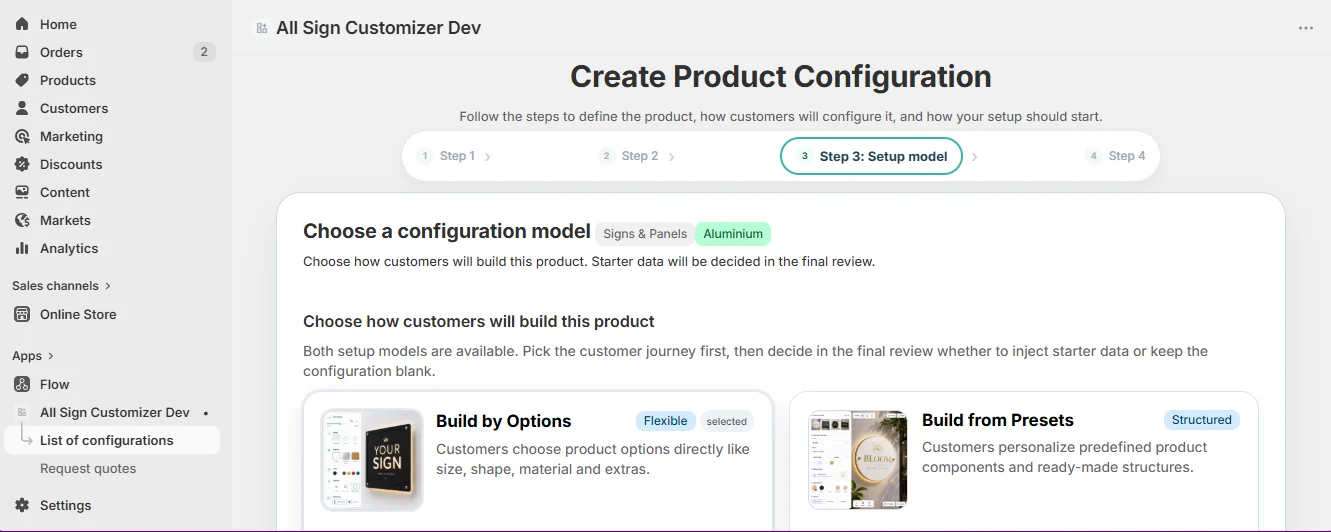
It is the clearest way to learn the standard Signs & Panels workflow. If you want customers to start from predefined designs instead, follow Create a Preset-Based Configuration →.
5. Name the configuration and connect a Shopify product
Give the configuration a clear internal name, then connect it to the Shopify product that customers will customize. This is the step that turns your ASO setup into a real storefront experience.
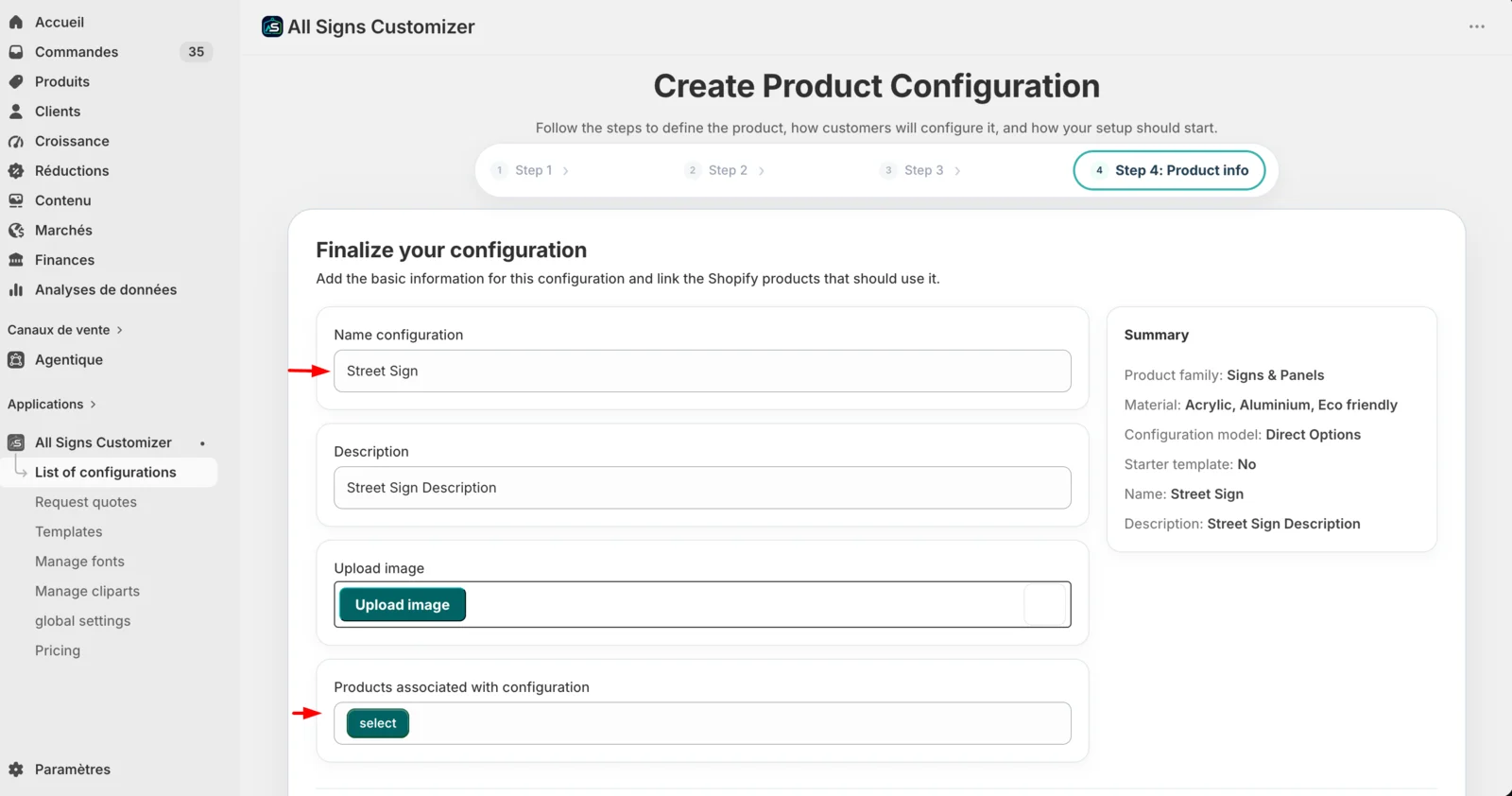
Connect the Shopify product while creating the configuration. It is the fastest path from the wizard to a working storefront test.
In Step 4 of the creation wizard, enter the configuration name and use the product selector to choose the Shopify product you want to customize. Save your selection and continue to the final review.
- Use a name your team will recognize, such as Custom Acrylic Sign or Aluminum Sign Panel.
- Select the Shopify product that represents this customizable item.
- You can connect the configuration now even if you plan to replace the Demo Data later.
6. Include the starter template
On the final step, under Starter template, choose Include starter template rather than Start blank, and pick the language of the demo texts. ASO populates the new configuration with Demo Data that fits the product family you selected: sizes, materials, pricing profiles, colors, shapes, fixing methods and fonts.
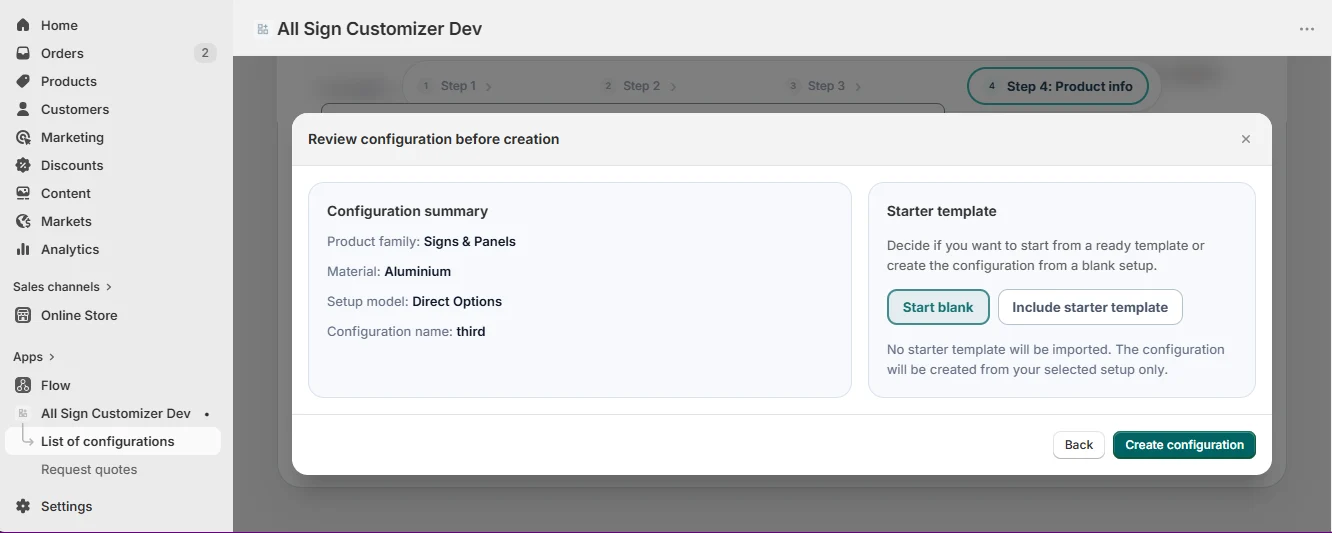
Include starter template gives you an immediately explorable setup. You can see how options behave, preview the customizer and then replace the sample values with your own product data.
7. Preview the customer experience
Open Preview and use the customizer as if you were a shopper. With Demo Data enabled, you should already be able to interact with the sample configuration instead of testing an empty canvas.
- The customizer loads.
- Sample options are visible.
- The design or preview reacts to selections.
- Pricing changes when the demo setup includes price rules.
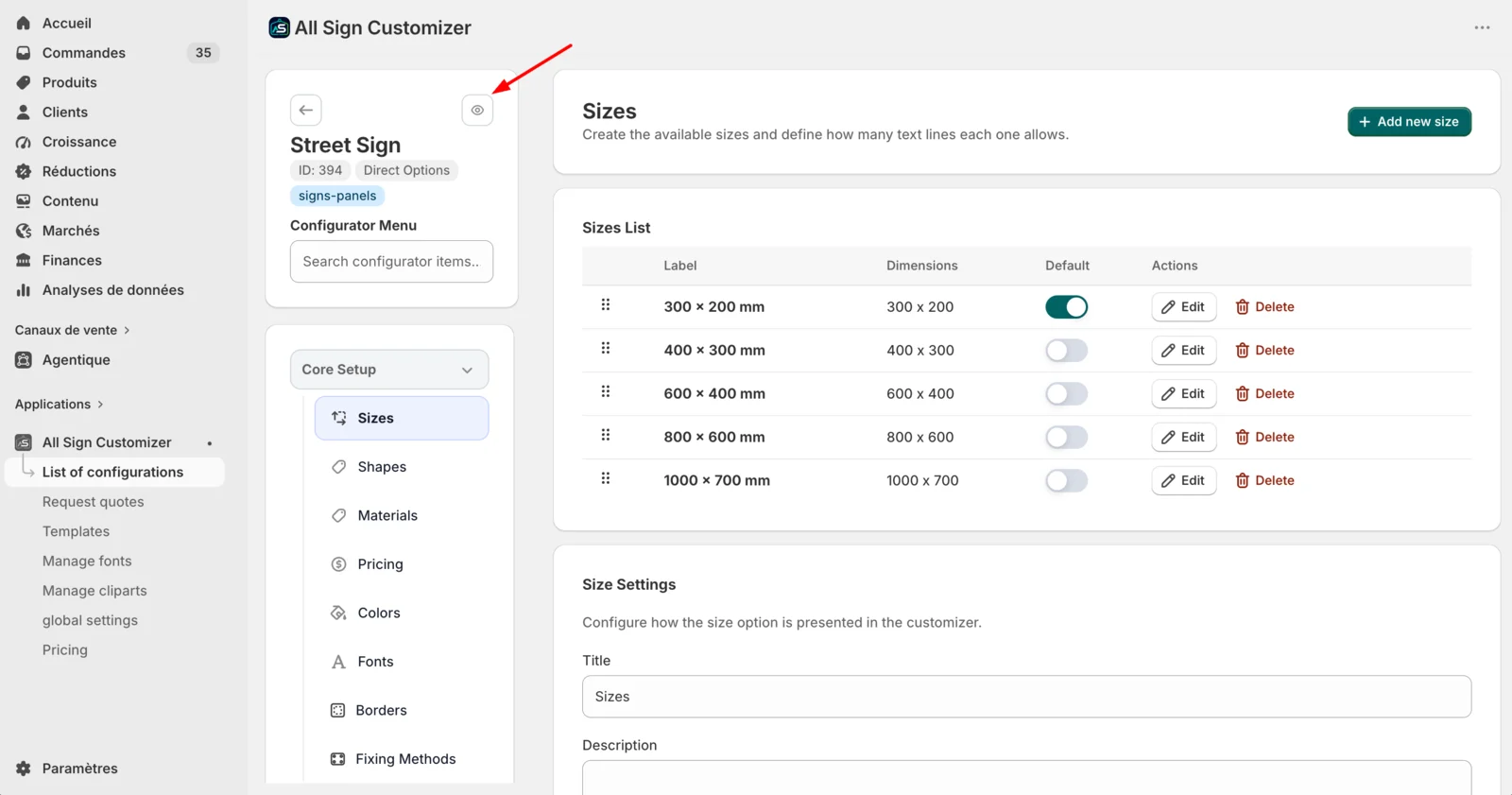
8. Open the connected product on your storefront
Visit the Shopify product you connected to the configuration. Confirm that the customization button appears, open the customizer and complete one simple customer journey.
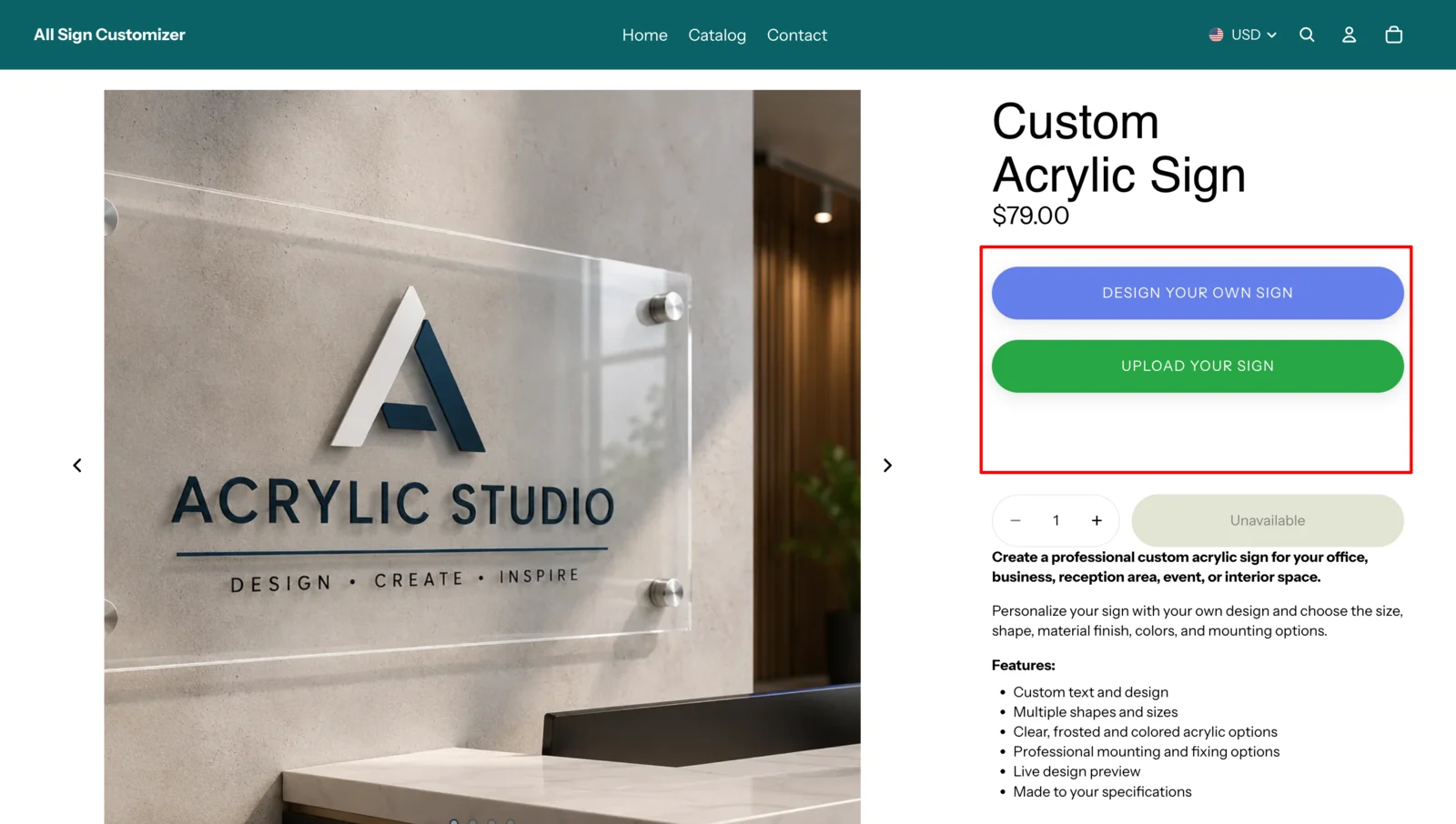
- The customization entry point appears on the correct Shopify product.
- The button opens the configuration you just created.
- Demo options are available and react correctly.
- The preview updates when you make selections.
- The product can continue through the expected cart flow.
Confirm that the product opens the correct configuration and that the customer can interact with it. This gives you a known working baseline before you start adding your own sizes, materials, pricing, artwork and other options.
🎉 Your first Signs & Panels configuration is ready
You’ve created, previewed and connected your first ASO configuration to Shopify. Now you can replace the Demo Data with your real product options.
Get product news by email
New features, release notes and setup tips — a few emails a year.