Print-Ready Files for Custom Sign Orders
Which file each production method needs, what the order recap must say, and how to stop blurry customer logos before they reach your workshop.
Selling custom signs online only works if every order can go straight to production. The weak point in most shops is not the sale; it is what happens after: a screenshot of the design, a font name the customer half remembers, a logo pasted at 200 pixels wide. This guide explains what a print-ready file is for each kind of sign, what else an order needs, and how to stop redrawing customer designs by hand.
What “print-ready” means for a sign
A file is print-ready when your workshop can produce the sign from it without changing anything. For signs, that usually means:
- Real size: the file is at the final dimensions of the sign, or at a known scale.
- The right resolution for printed signs: 300 DPI at real size is the usual standard; 150 DPI can be acceptable for large signs seen from a distance.
- Vector paths for anything cut, engraved or routed: lines that stay sharp at any size, with text converted to outlines so the font does not need to be installed.
- The customer’s own artwork in its original file, not a compressed copy.
- Exactly what was ordered: the same text, font, colors and options as the preview the customer approved.
Which file for which production method
| Sign and method | Usual file |
|---|---|
| UV or digital print on acrylic, aluminium, PVC, banners | PDF or PNG at 300 DPI, real size |
| Laser engraving or cutting (wood, acrylic, brass) | SVG or other vector, real size |
| Vinyl lettering and stickers (plotter cutting) | SVG with clean outlines |
| CNC routing (backboards, wood, dibond) | SVG or DXF for the toolpaths |
| LED neon | SVG of the lettering as a template for the flex and the backboard cut |
| Channel letters | Vector outlines of each letter for faces and returns |
A file is not enough: the order recap
Production also needs the decisions that are not visible in a flat file. Every custom sign order should carry, in writing:
- Material and thickness, size, shape.
- Fixing method and the hardware to pack.
- Colors: material, text, border, lighting.
- Each text line with its font, and both faces for double-sided signs.
- For neon and letters: construction, backboard, jacket, mounting.
With the recap and the file side by side, anyone in the workshop can check the job in seconds.
Customer uploads: stop blurry logos early
Most production problems come from customer artwork. Prevent them at the moment of upload rather than after payment:
- Accept the formats you can use (for example PNG, JPG, SVG, PDF) and refuse the rest.
- Set a maximum file size, and a minimum width and height in pixels for the area where the logo goes, so images too small to print are refused.
- Keep the original upload with the order, next to the design.
Organize files so nothing gets lost
- One zip per order line, named with the order number.
- Files named consistently: your prefix, the order number, the face.
- An email to the workshop when the order is placed, and to your manufacturer if someone else produces the sign.
- A watermark on previews you send to customers, if you worry about designs being produced elsewhere.
Production checklist
- Open the PDF: dimensions and resolution are right.
- Compare the recap with the preview: material, color, fixing, texts.
- Check customer uploads are sharp at the final size.
- For double-sided signs, produce both faces.
- Pack the fixing hardware listed in the recap.
Doing it with All Sign Customizer
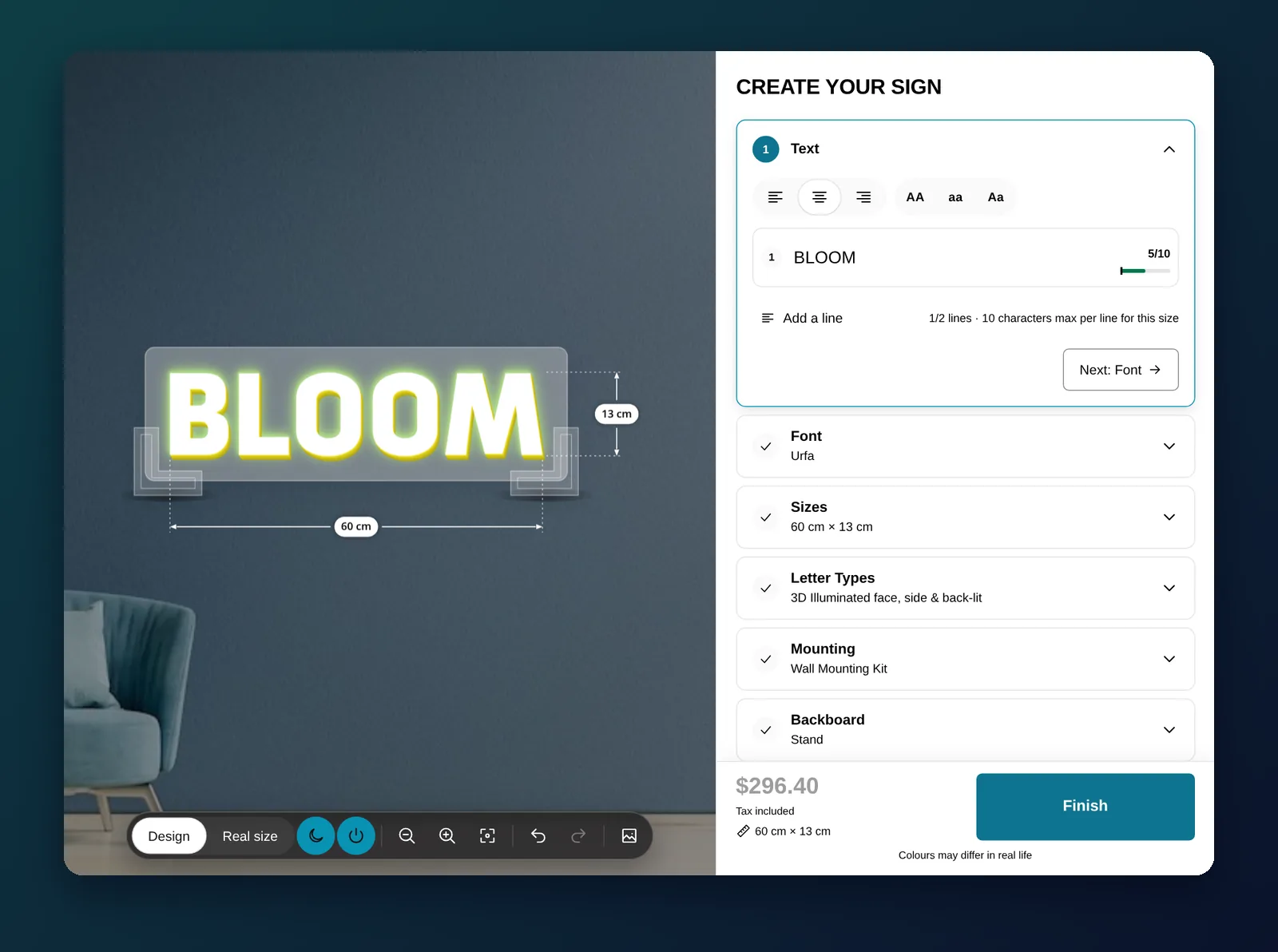
All Sign Customizer, the Shopify app we make, generates the files when the order is placed: PNG, JPEG or SVG (or two together), and always a PDF at 72, 150, 300 or 600 DPI. Each order line gets a zip named with your prefix and the order number, the customer’s uploads in their original files, and a recap shown on the Shopify order page. Image zones can refuse logos below a minimum size, and order emails go to your team, your customer, and for neon and channel letters, your manufacturer. See Orders and production files and Output settings.